
Creative PowerPoint Night Ideas
Want to be the star of your next PowerPoint Night? With the right ideas and a spark of creativity, you can turn any theme into a show-stopping experience that keeps everyone laughing and engaged. Whether you’re planning a friendly game night, a classroom challenge, or a team-building session, this guide is your secret weapon. Inside, you’ll find funny and clever PowerPoint night themes, ready-to-use templates,creating templates with AI Presentation Maker and expert tips to help you shine. Learn how to pick topics that surprise, design slides that wow, and deliver a presentation no one will forget. Ready to steal the spotlight? Let’s get started.
What Is a PowerPoint Night & Why Does It Matter?
PowerPoint nights are group events where each person presents on a funny, random, or insightful topic — often with intentionally humorous slides. They're popular with students, educators, and even coworkers looking for a low-pressure way to bond. But the real magic lies in the storytelling. The best Power Points Night ideas turn facts (or wild opinions!) into memorable stories, sparking laughter and debate. Getting the mix of topic, visuals, and energy right can transform an average night into a legendary one.
10 PowerPoint Night Ideas Everyone Will Love
Struggling to pick a theme? Try one of these:
- "Unpopular Opinions: Defend Your Hot Take"
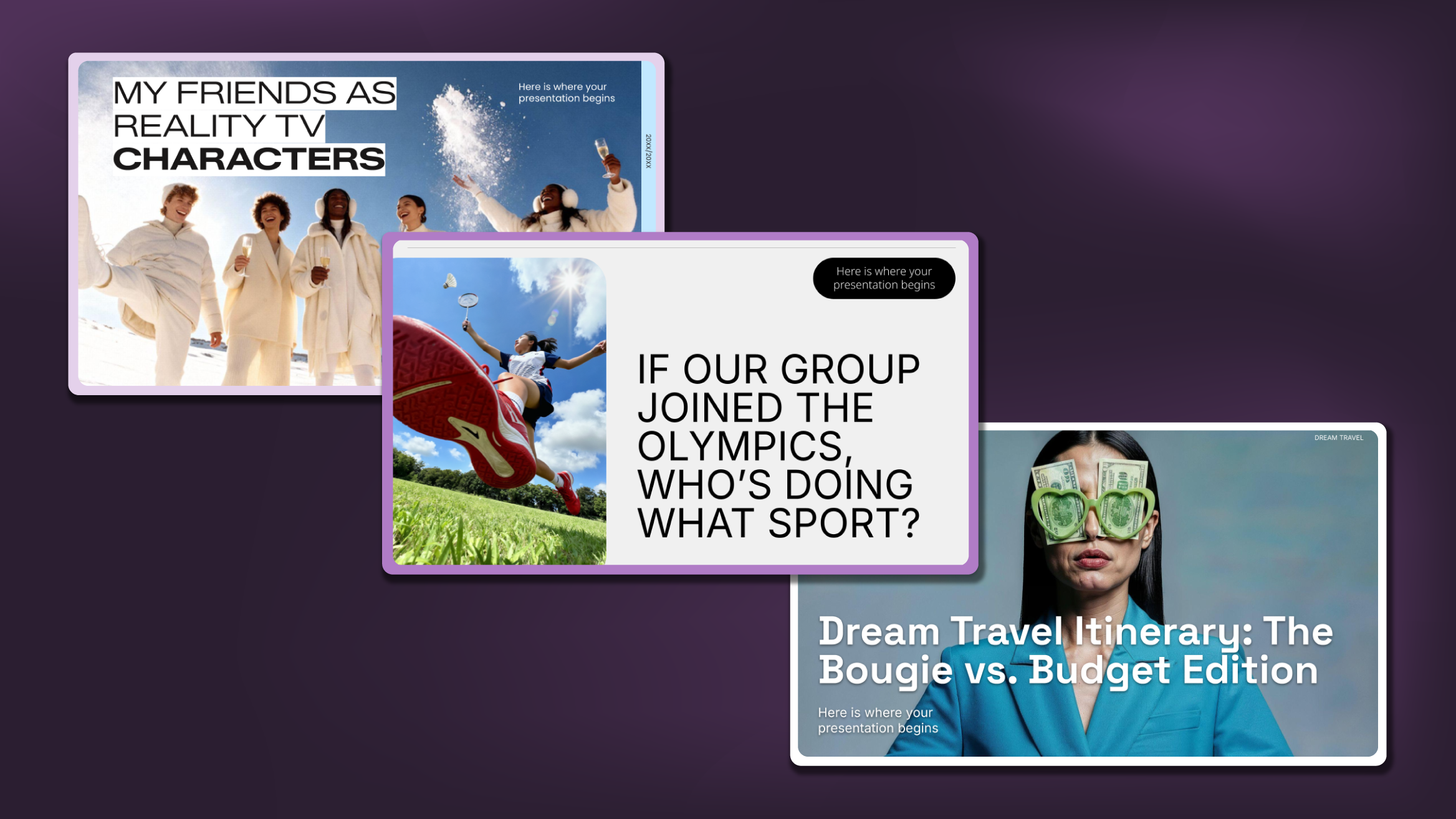
- "My Friends as Reality TV Characters"
- "Conspiracy Theories I 100% Believe"
- "Ranking Fast Food Fries: A Scientific Approach"
- "Petty Grievances: Things That Annoy Me More Than They Should"
- "Dream Travel Itinerary: The Bougie vs. Budget Edition"
- "Movie Villains Who Had a Point"
- "Meme History: The Untold Story of Internet Icons"
- "Which Fictional Character Would Survive a Zombie Apocalypse?"
- "If our group joined the Olympics, who’s doing what sport?"

How to Structure a PowerPoint Night Presentation
Great Power Point Night themes are just the beginning — the secret to crowd-pleasing presentations is how you structure them. Here’s a pro’s cheat sheet:
- Hook Them Fast: Start your slide deck with an attention grabber — a meme, a bold claim, or a surprising question.
- Tell a Story: Even a funny rant is better with a narrative. Set up your "problem," present your case, and drive to a punchy conclusion.
- Visual Overload: Slides packed with memes, GIFs, and bold icons (Freepik or Flaticon) keep energy high. Just avoid clutter by sticking to big images and short text.
- Use Templates for Flow: Don’t sweat layout. You can explore the wide variety of templates available on Slidesgo.
- Wrap with a Bang: End with a call to action or a "discussion question" to spark debate.
Extra Tip: you can set up your Power Point layout from the start using AI Presentation Maker. It's a great way to structure your presentation with real content.
Common Mistakes to Avoid
- Overcrowding slides with text (nobody wants to squint).
- Picking topics you can't riff on naturally.
- Forgetting to rehearse your timing — five minutes max keeps it tight.
- Skipping a clear ending (awkward silence is the enemy!).
Real Examples: Turning Funny Presentation Ideas into Hits
Imagine your friend picks "Ranking Fast Food Fries":
- The intro uses a map of locations visited (visual hook).
- Each slide features a fry photo, score out of 10, and a snappy review.
- They close with a dramatic "Fries Power Ranking" chart — and spark heated debate.
Or try "My Friends as Reality TV Characters":
- Start with playful side-by-side photos (your friend vs. their TV twin).
- Add stats like "Most Likely to Cause Drama: 9/10".
- Use custom illustrations or icons to drive home the joke.
PowerPoint Night Best Practices: Set Your Group Up for Success
To keep things fun and drama-free, set a few ground rules:
- Keep it short — aim for 3–5 minutes per presenter.
- One theme per person (no duplicates!).
- Interactive elements win — polls, quizzes, or secret votes ramp up fun.
- Embrace the silly, but stay respectful — inside jokes should be inclusive.
Conclusion
There’s no single formula for the perfect PowerPoint Night, but the essentials stay true: bold themes, strong visuals, and storytelling that keeps everyone laughing. Check AI Presentation Maker or explore Slidesgo's themes, draw from PPT night ideas in this guide, and lean into your group’s sense of humor. Whether for friendship, team building, or education, a little planning and creativity can turn your next presentation event into a crowd favorite. Ready to start?
Tags
BusinessDo you find this article useful?
Related tutorials
How Smart Template Matching Saves Hours on Your Next Presentation
Content Find your perfect template, automatically How it works Templates that match your topic Get better results FAQ Skip the Search, Start Creating Find your perfect template, automatically Great presentations look intentional—where the design supports the message. But finding a template that fits usually means scrolling through dozens of options....
Presentation Design Trends 2026: 10 Styles Shaping Your Slides
In 2026, presentations are no longer just visual support tools—they’re becoming clear, human, and emotionally engaging experiences. Typography steps into the spotlight, shapes soften, and colors aim to restore focus on what really matters. Data and stories aren’t just shown; they’re spoken in a way that feels natural and considered.The way...
Smart Guide: Best AI Prompts for Powerful Presentations
Ever stared at a blank slide, knowing your message matters but not sure how to bring it to life? You’re not alone. With the rise of AI Presentation Maker, more creators, educators, and professionals are asking: What are the best AI prompts for presentations?This guide shows you exactly how to...
How Teachers Are Really Using AI in the Classroom: Voices from the Field
“I hope that AI can ensure students are still doing the planning, writing, and critical thinking needed. Students can't lose these skills.” -6th grade Science Teacher, FloridaFull disclosure: I interviewed my mom for this blog post.My mom, a retired 25+ year veteran educator who recently returned to the classroom, told me...