
Smart Guide: Best AI Prompts for Powerful Presentations
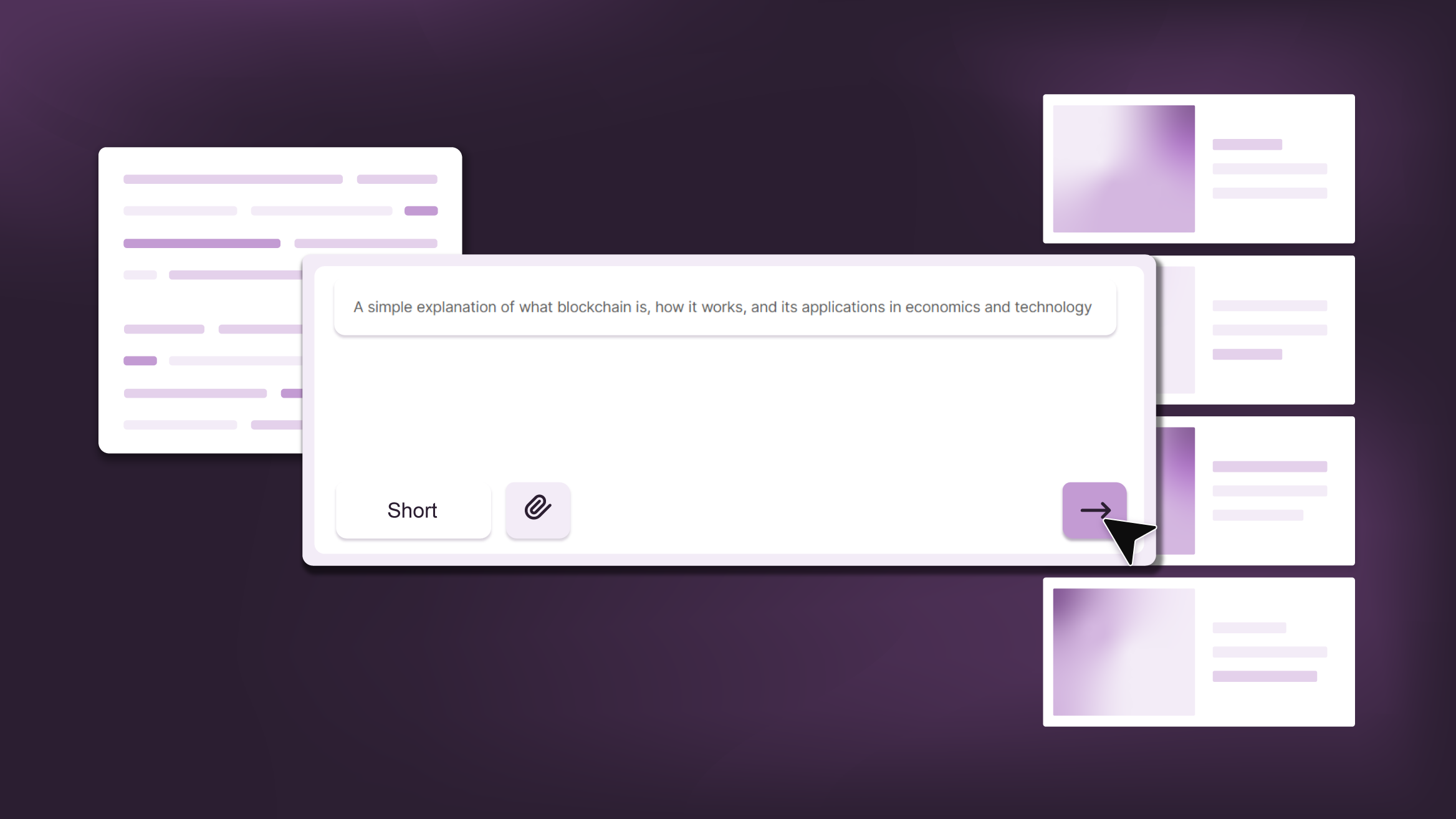
Ever stared at a blank slide, knowing your message matters but not sure how to bring it to life? You’re not alone. With the rise of AI Presentation Maker, more creators, educators, and professionals are asking: What are the best AI prompts for presentations?
This guide shows you exactly how to use smart prompts to unlock unique, story-driven slides — so you can spend less time designing and more time connecting with your audience. In this article, you’ll get actionable advice, real examples, and tips to avoid common mistakes, helping you creative an impressive presentation that truly stands out.
Getting to Know AI Prompts for Presentations
First, let’s start with the basics, what’s a prompt? A prompt is simply an instruction or question you give to an AI platform. In AI Presentation Maker, prompts guide the tool to generate text and images that help you build a complete, engaging presentation, so the right prompts can help you:
- Generate content that perfectly fits your topic.
- Instantly adapt tone and complexity for your audience.
- Bring fresh perspectives and engaging narrative flow.
- Create a complex presentation.
Why does it matter?
Because a clear, targeted prompt gets you a customized slide set, rather than generic text. For example:
- "I’m pitching a new tech product to a non-technical audience. Write a short presentation outline that focuses on benefits, not features."
- "Summarize these PDF case studies into concise, visually engaging slides."
Common mistakes to avoid
- Using vague prompts. “Make a presentation about marketing.”
- Forgetting to specify audience, tone, or length.
Best practices for prompts
- Choose between a long or short presentation.
- State the audience and desired outcome (inform, persuade, teach).
8 Expert-Level AI Prompts to Try Today
Jumpstart your next deck with these plug-and-play prompts crafted for Slidesgo’s AI Presentation Maker. Each one can be easily adapted to your topic, helping you save hours of outlining and slide creation.
- Create an overview of [my topic] for college freshmen, focusing on practical takeaways and clear visuals.
- Turn this research brief into a presentation summary for executives, using simple language and one key insight per slide.
- Design an AI-powered slides that teach [concept] to beginners, including an analogy and a real-life scenario.
- Transform this PDF report into a condensed visual presentation, highlighting three action items.
- Develop a slide deck about [trend], using a case study and industry stats (cite sources).
- Write presenter notes for each slide on [topic], giving talking points and questions to ask the audience.
- Summarize [article link] into slides suitable for middle school students, with interactive elements.
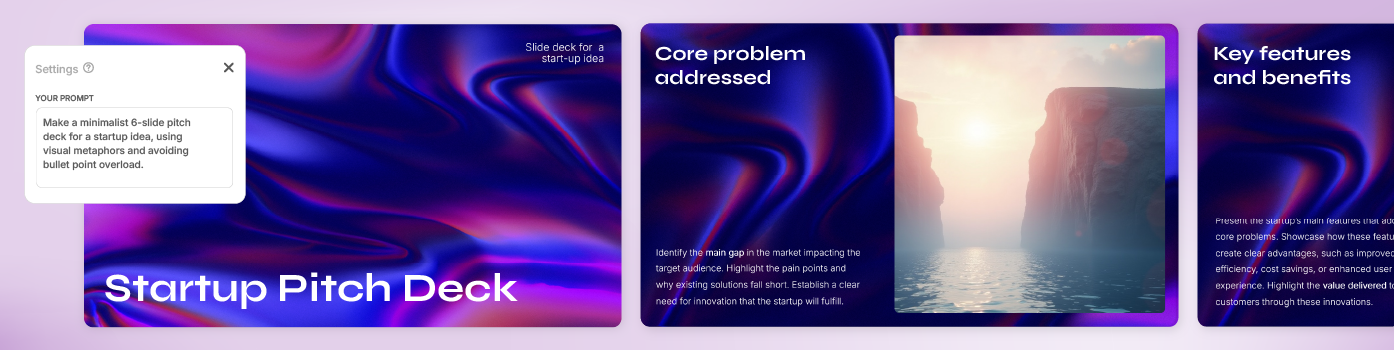
- Make a minimalist a slide pitch deck for a startup idea, using visual metaphors and avoiding bullet point overload.
Elevate Your AI-Created Content
AI doesn’t replace your voice — it amplifies it. Start with a strong prompt, but always review and customize the result. Here’s how to turn raw AI output into a polished, powerful presentation:
- Edit for clarity & flow: Paraphrase, add anecdotes, and break up dense text.
- Leverage design templates: Use business presentation templates or minimalist designs to ensure consistency and visual appeal.
- Enhance with visuals: Drop in images from Freepik, icons from Flaticon, or create unique and stunning AI Images with the Freepik AI Suite.
- Tell your story: Move beyond facts; use the AI-generated outline as the backbone for a compelling narrative. Think transformation, not just information.
Example: Instead of accepting "Our company grew by 30%" add "Because our team prioritized customer feedback, we achieved a 30% growth — here’s what that looked like for our clients."
Avoiding Pitfalls: AI Prompt Dos and Don'ts
Even strong AI prompts can fall flat if you skip a few basics. Here’s what to watch out for:
Do
- Verify facts and sources.
- Adjust tone — AI often sounds too formal.
- Add visuals that reinforce your message.
- Use story links between slides for smooth flow.
Don’t
- Settle for the first draft — refine and edit.
- Overload slides with text; leave space for talking points or questions.
- Skip a storyboard — ensure narrative flow by mapping slides before finalizing design.
Quick fix: If it feels generic, ask the AI: “What’s the surprising takeaway or real-world example?” — then re-prompt for a fresher result.
Conclusion
AI prompts are your shortcut to smarter, more engaging presentations. The secret is specificity — tailor your prompts and shape the AI results into a story only you can tell. Next time you face a blank slide, let technology handle the heavy lifting so you can focus on ideas.
Ready to create with confidence? Try Slidesgo’s AI Presentation Maker and bring your vision to life — fast and fearlessly.
FAQ
Can I turn a PDF into a presentation using AI?
Yes! Slidesgo's AI Presentation Maker lets you upload a PDF, which the AI converts into a concise, editable slide deck. This saves time retyping and helps you focus on storytelling and design.
Can I customize the presentations created with AI Presentation Maker?
Yes, you can fully customize your AI-generated presentations — edit text, colors, layouts, and visuals to match your style.
Do AI-generated slides need to be edited?
Absolutely. AI provides a solid starting point, but you should always review, personalize, and enhance the content with visuals and story elements to make your presentation unique and engaging.
What program can I use to edit my AI-generated presentation?
You can edit your presentation in PowerPoint or Google Slides — just generate it in your preferred format and start customizing.
Where can I find templates for AI-generated presentation topics?
With the AI Presentation Maker, you have access to over 33,000 Slidesgo templates — so you can always find a style that matches your project.
| Feature | Benefit |
|---|---|
| AI Generation | Instantly draft outlines & slides from custom prompts |
| PDF Upload | Turn dense reports into editable, story-driven decks |
| AI Image Styles | Match visuals with your topic—from professional to playful |
| 33,000+ Templates | Jumpstart design with proven layouts for every audience |
Tags
BusinessDo you find this article useful?
Related tutorials
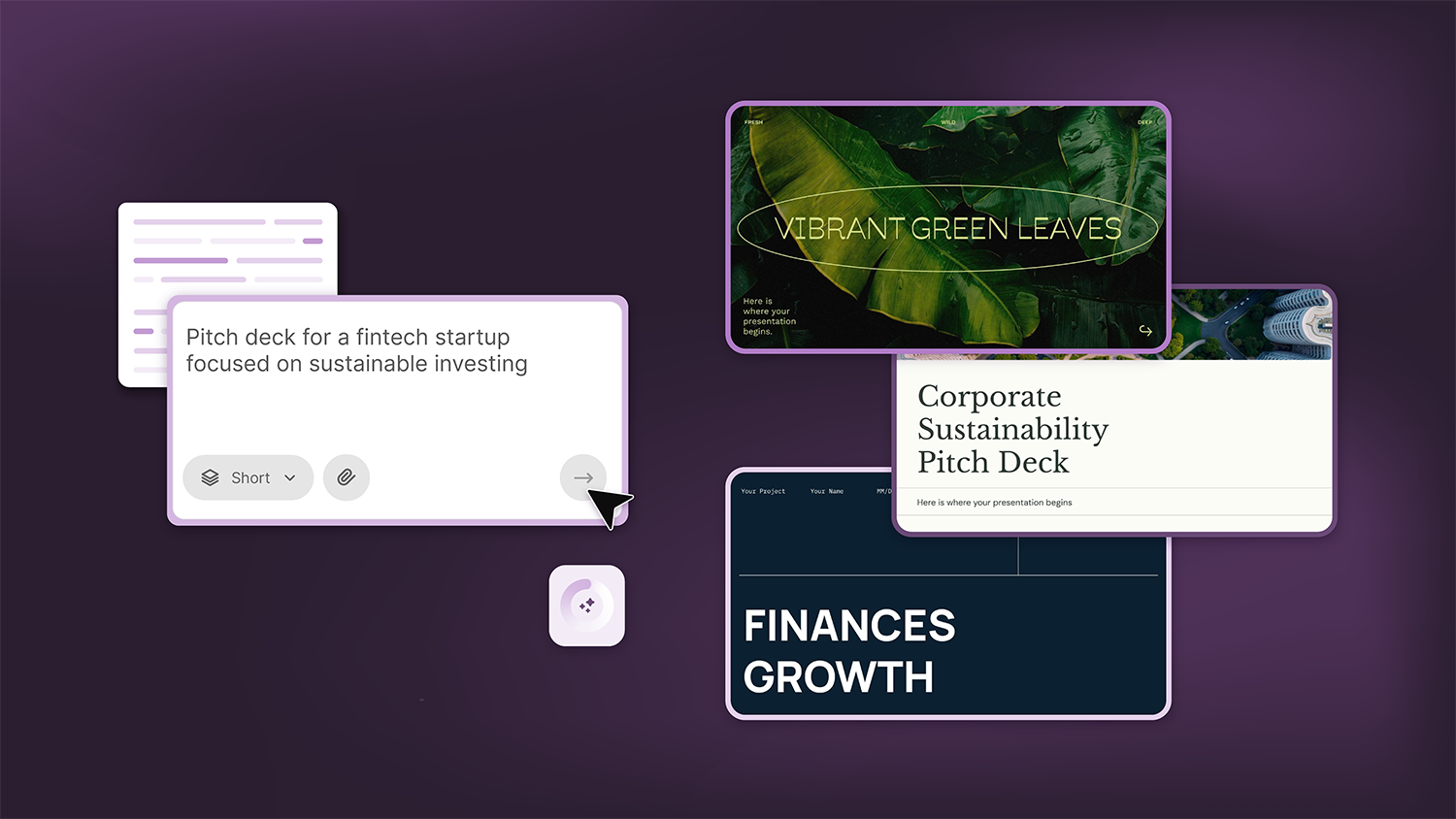
How Smart Template Matching Saves Hours on Your Next Presentation
Content Find your perfect template, automatically How it works Templates that match your topic Get better results FAQ Skip the Search, Start Creating Find your perfect template, automatically Great presentations look intentional—where the design supports the message. But finding a template that fits usually means scrolling through dozens of options....
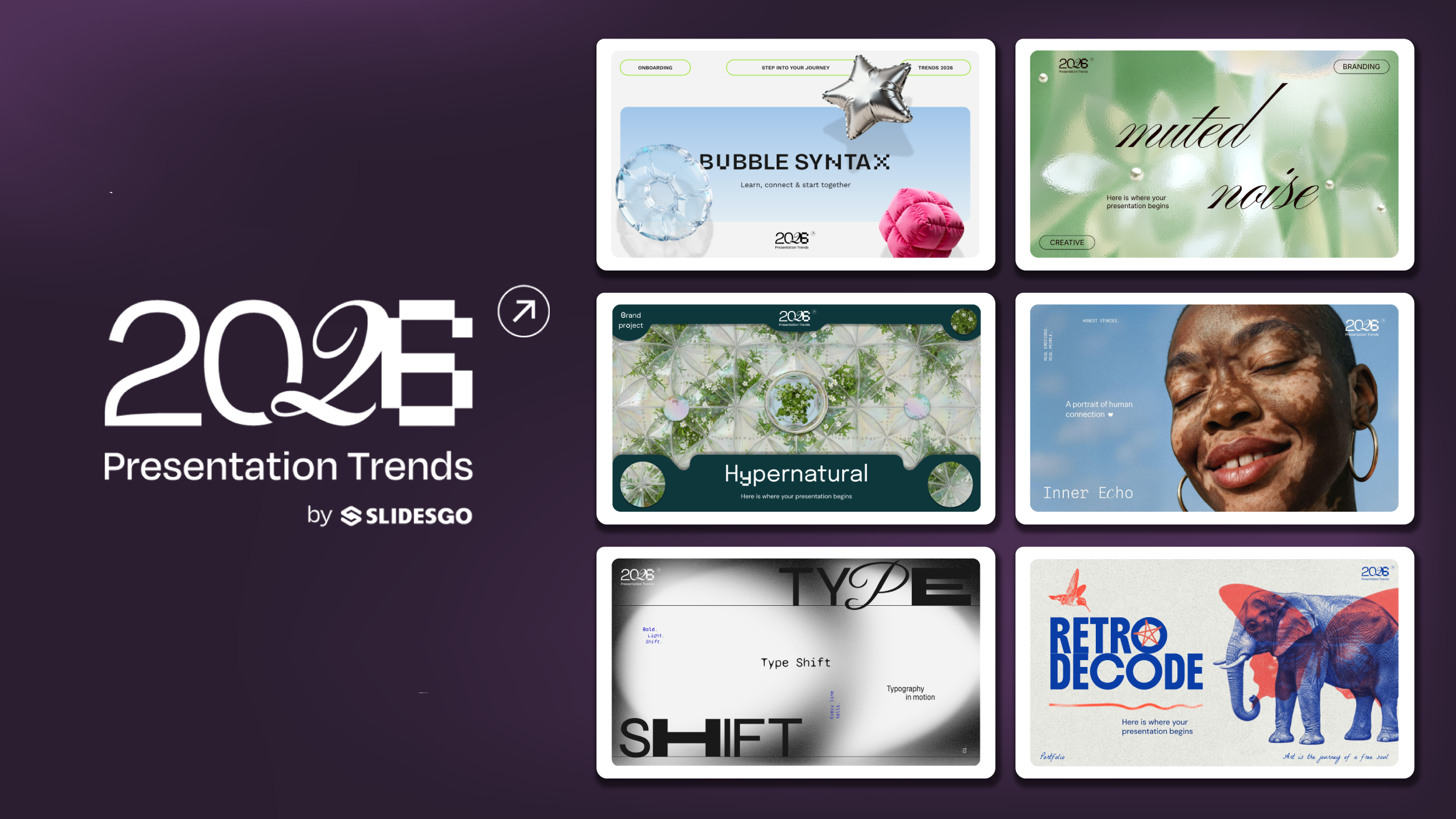
Presentation Design Trends 2026: 10 Styles Shaping Your Slides
In 2026, presentations are no longer just visual support tools—they’re becoming clear, human, and emotionally engaging experiences. Typography steps into the spotlight, shapes soften, and colors aim to restore focus on what really matters. Data and stories aren’t just shown; they’re spoken in a way that feels natural and considered.The way...
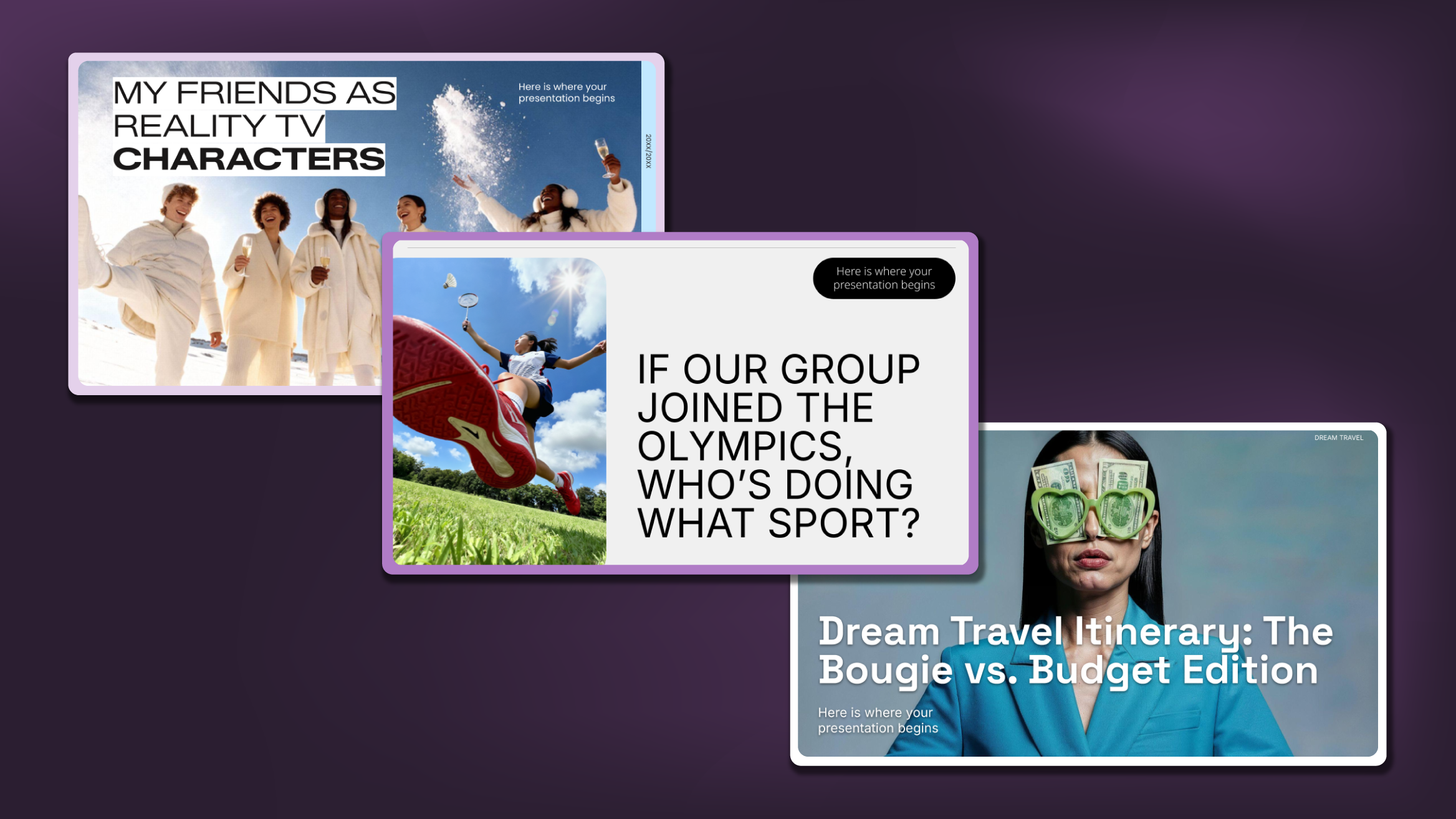
Creative PowerPoint Night Ideas
Want to be the star of your next PowerPoint Night? With the right ideas and a spark of creativity, you can turn any theme into a show-stopping experience that keeps everyone laughing and engaged. Whether you’re planning a friendly game night, a classroom challenge, or a team-building session, this guide is your...
How Teachers Are Really Using AI in the Classroom: Voices from the Field
“I hope that AI can ensure students are still doing the planning, writing, and critical thinking needed. Students can't lose these skills.” -6th grade Science Teacher, FloridaFull disclosure: I interviewed my mom for this blog post.My mom, a retired 25+ year veteran educator who recently returned to the classroom, told me...