
How to convert PDF to PPT online for free
Ever tried making a presentation from a PDF? It’s not exactly fun—copying, pasting, reformatting… plus, it takes forever. So, why do it? Instead convert your PDF to PPT in seconds through our new tool AI PDF to PPT converter.
Whether you’re pitching an idea, designing tomorrow’s lesson plan, or presenting a report, this tool helps you focus on what matters—your content. Plus, with everything in PowerPoint, you can tweak layouts, add animations, and make your presentation stand out. Want to learn how to convert a PDF to PPT for free?
How to use our AI PDF to PPT tool step-by-step
It’s fast and easy, just follow these 5 steps to present:
- Open Slidesgo AI PDF to PPT Converter.
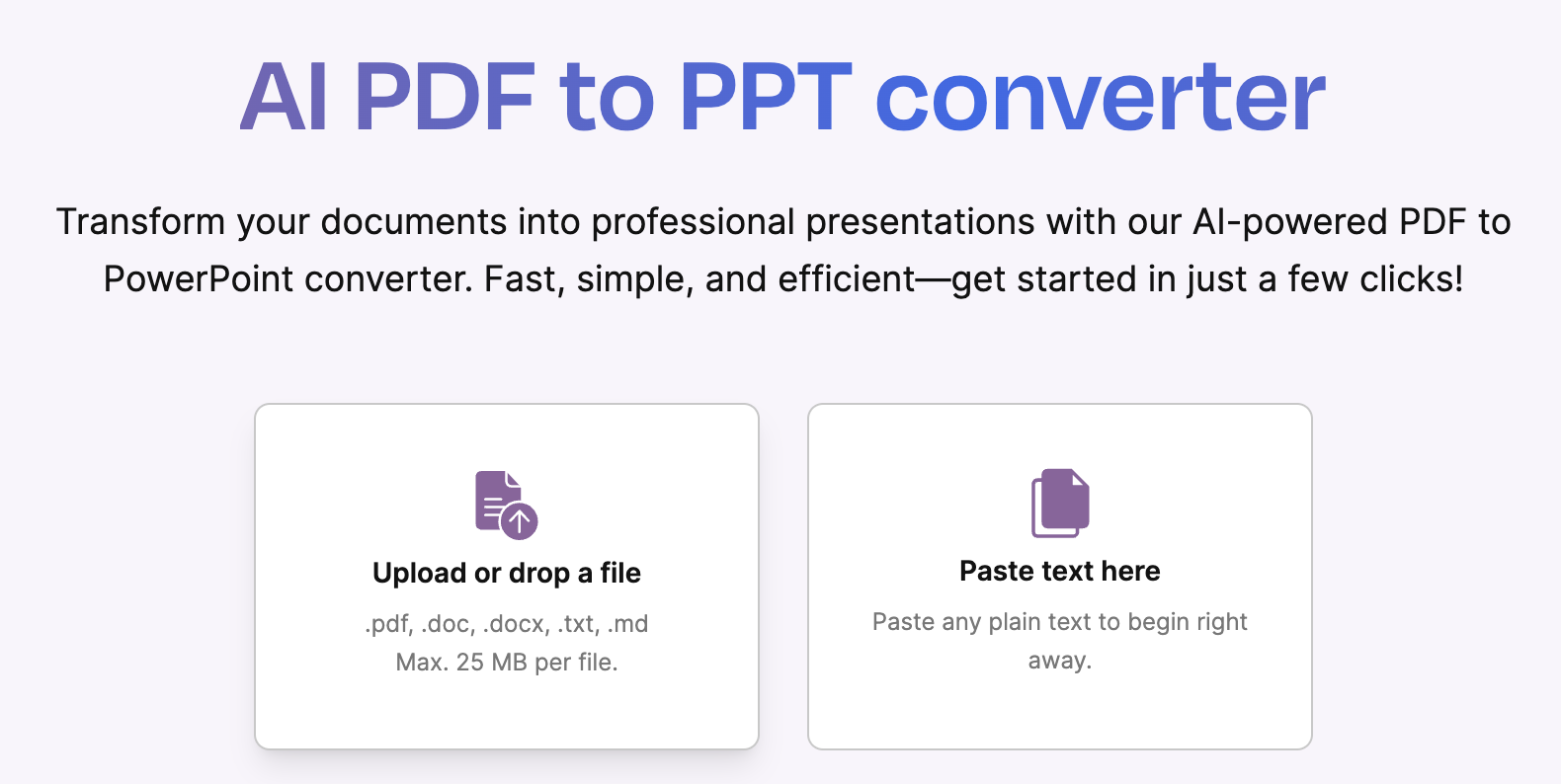
- Upload your .pdf .doc .txt OR just copy and paste your text and drop it in.
1. Upload your document.
Our tool converts PDFs, but other types of documents too including: .doc, .docx, .txt. or .md. You can also just copy and paste any text and drop it in the box too to instantly organize your text into slides.
Select a template style!
2. Theme.
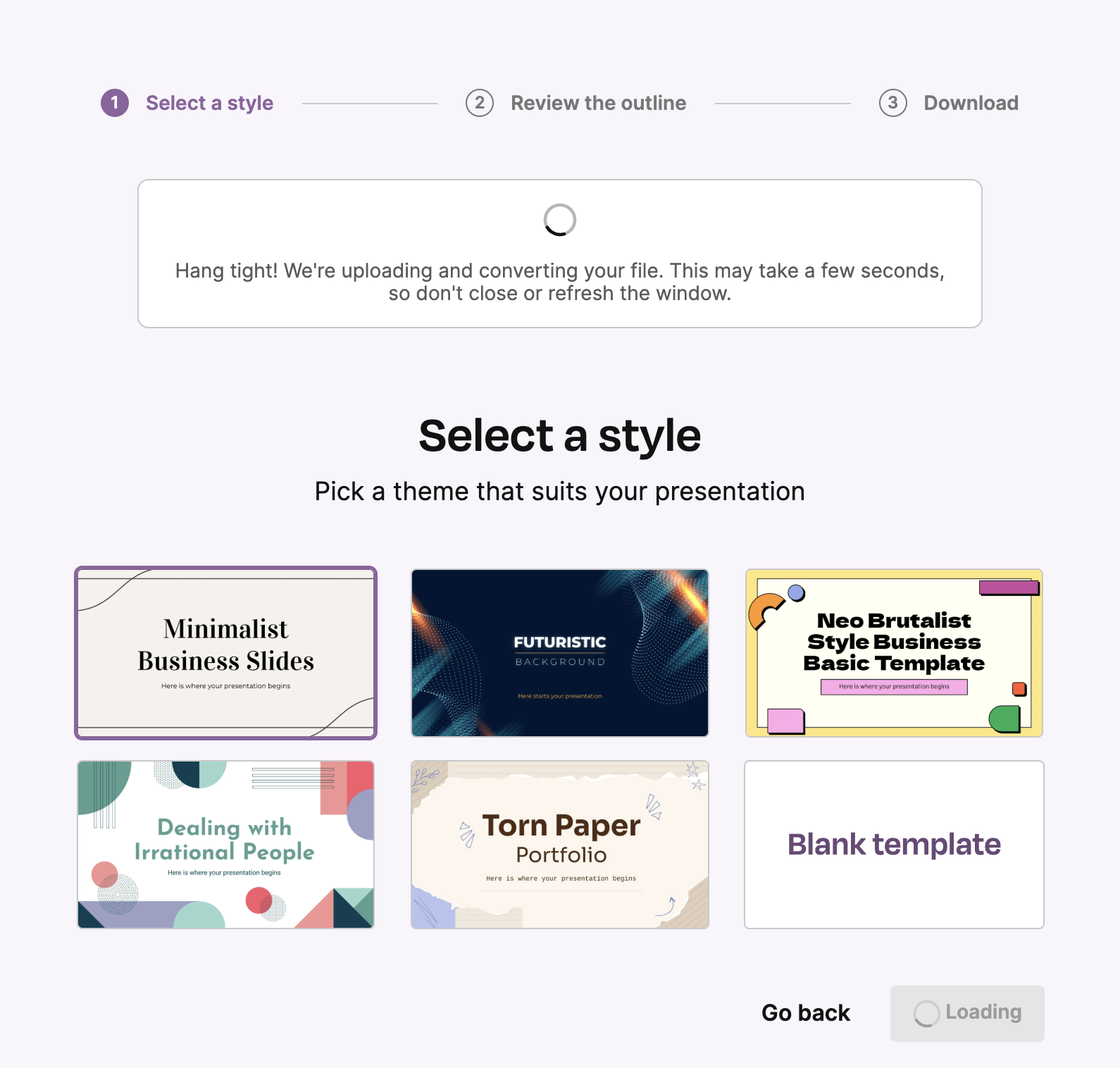
- Choose a style from our library that will match the tone of your content.
The presentation will default to our most popular template, Minimalist Business Slides, but you can choose from these options to change the font, graphics and color palette to customize for your audience. - Just click on the theme you want, and the purple box will indicate which style it will use for your presentation!
3. Edit and outline it!
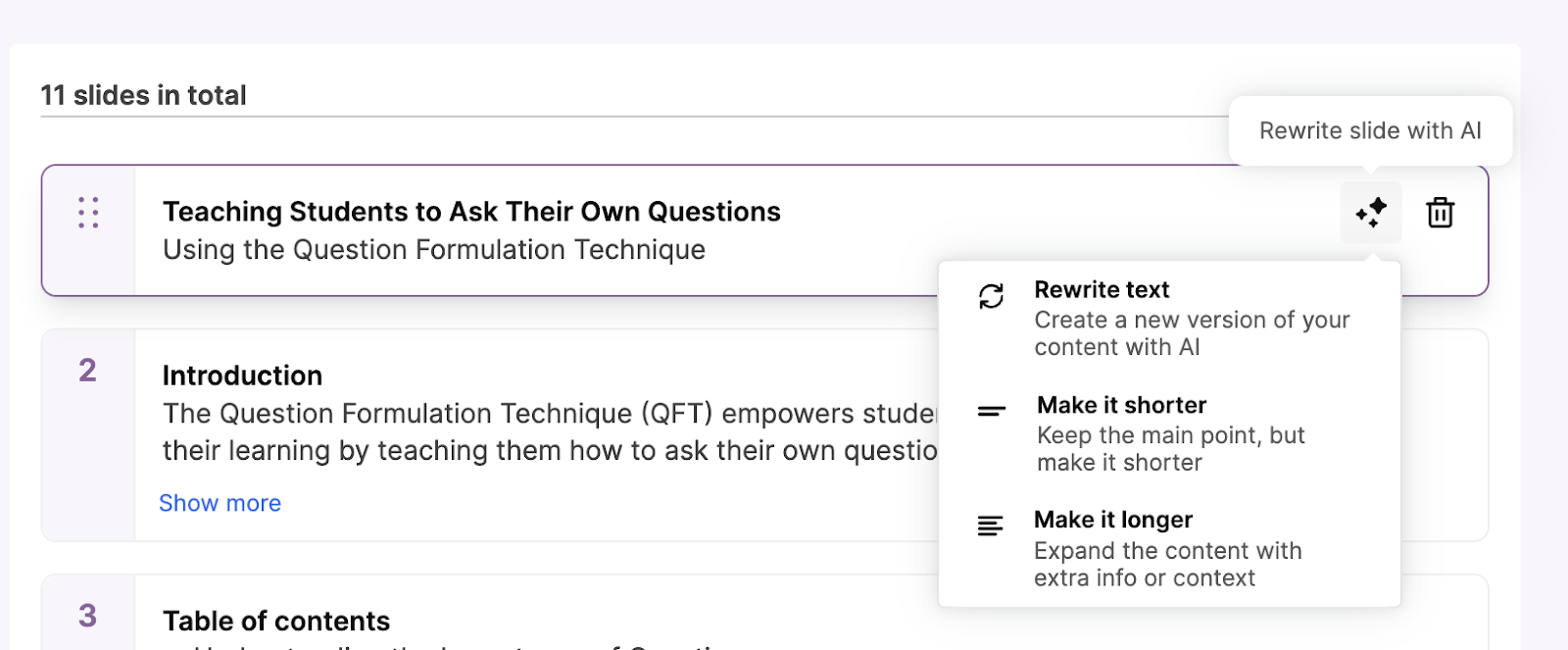
- Use AI to immediately Rewrite the text, Shorten the Text or Add more Info.
- Or edit using your own language (delete, move, and add text).
Before:

After:

4. Outline.
Use the outline to see the overall presentation flow
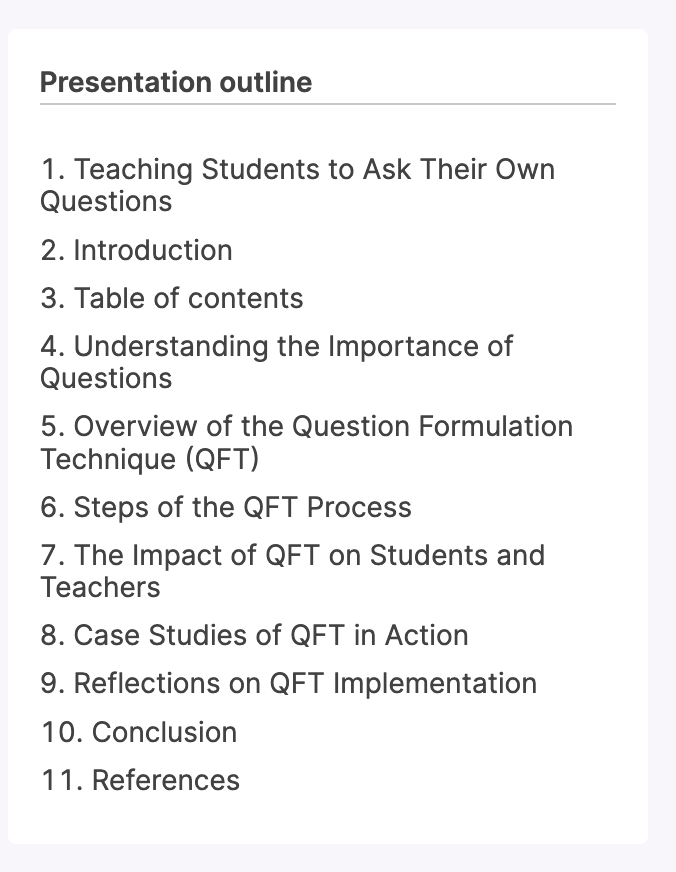
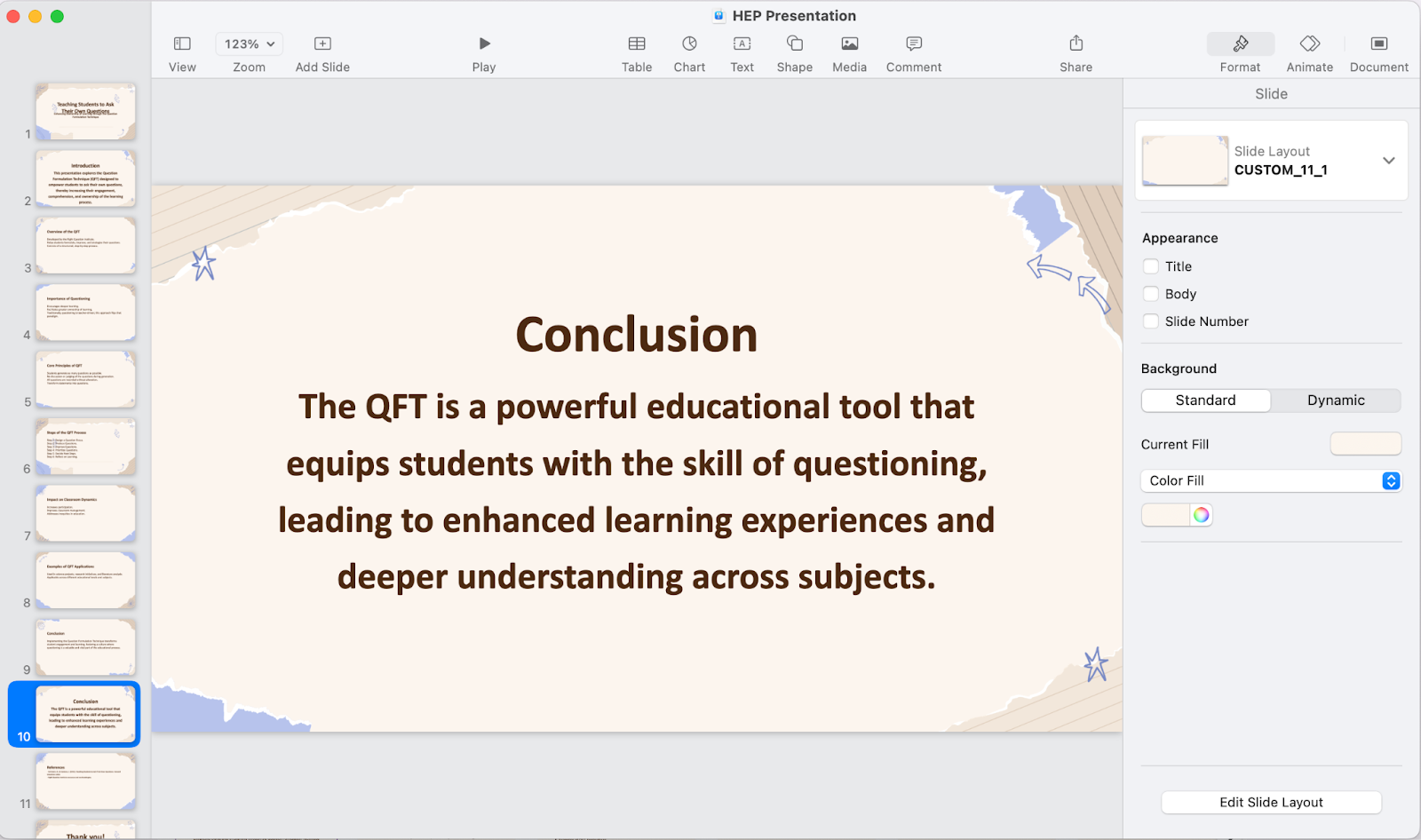
5. Preview and download your presentation to PPT.
- Scroll through the slides to see exactly how they’ll appear, slide by slide.
- To start from the beginning, just click: Start Over.
- If you’re ready to edit in PPT, click: Download and it will automatically open in PPT.
Share your presentation! Once you’re in PPT, you can edit here, add images or additional slides or text, merge with an existing slide deck or open in Google Slides. Happy presenting!
Who is our free PDF to PPT converter for?
1. Business Professionals: Save Time on Presentations
Let’s say you receive a PDF report from a client or a colleague. Instead of manually recreating slides, converting it into a PPT allows you to edit and present the data seamlessly in meetings.
2. Educators & Trainers: Make Learning More Engaging
Got a research paper, case study, or lesson plan in PDF format? Turning it into a PowerPoint lets you add animations, visuals, and interactive elements to keep students engaged.
3. Students: Transform Notes into Study Aids
Need to present a topic in class? Instead of summarizing everything from a PDF textbook manually, converting it into a PowerPoint allows you to highlight key points and visualize concepts quickly.
4. Designers & Marketers: Easily Repurpose Content
Marketing brochures, whitepapers, or pitch decks often come as PDFs. Instead of starting from scratch, converting them to PowerPoint gives you control to tweak content, add branding elements, or adjust designs effortlessly.
Conclusion
Converting a PDF to PPT saves time, boosts productivity, and enhances presentation quality. Whether you’re pitching an idea, teaching a class, or delivering a report, this simple tool helps bring static PDFs to life. Instead of struggling with a static document, you get an editable slide deck in seconds. Have you tried it yet?
Tags
BusinessDo you find this article useful?
Related tutorials
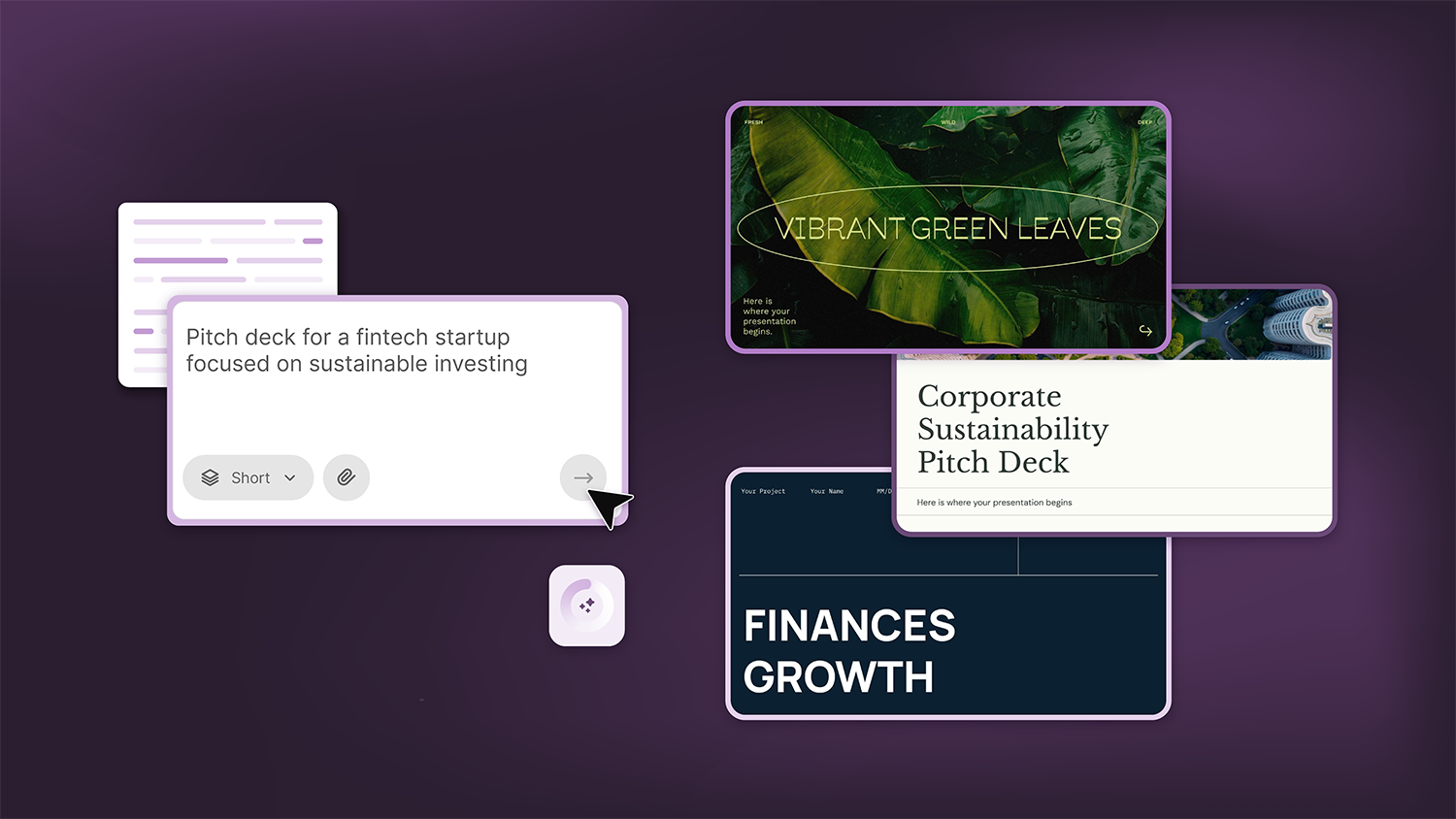
How Smart Template Matching Saves Hours on Your Next Presentation
Content Find your perfect template, automatically How it works Templates that match your topic Get better results FAQ Skip the Search, Start Creating Find your perfect template, automatically Great presentations look intentional—where the design supports the message. But finding a template that fits usually means scrolling through dozens of options....
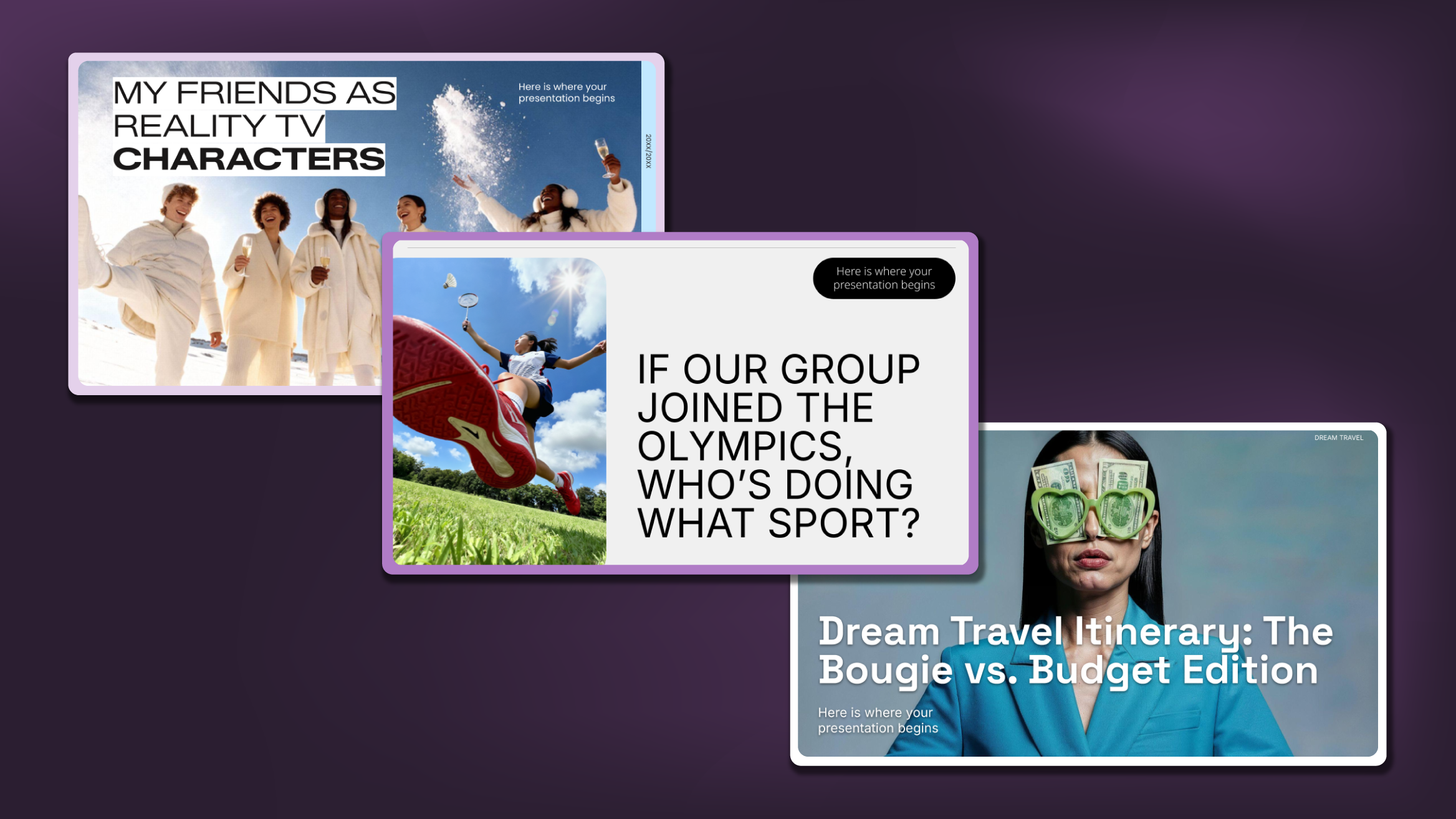
Creative PowerPoint Night Ideas
Want to be the star of your next PowerPoint Night? With the right ideas and a spark of creativity, you can turn any theme into a show-stopping experience that keeps everyone laughing and engaged. Whether you’re planning a friendly game night, a classroom challenge, or a team-building session, this guide is your...
Smart Guide: Best AI Prompts for Powerful Presentations
Ever stared at a blank slide, knowing your message matters but not sure how to bring it to life? You’re not alone. With the rise of AI Presentation Maker, more creators, educators, and professionals are asking: What are the best AI prompts for presentations?This guide shows you exactly how to...
How to Use the Presenter View in Google Slides
Google Slides, like PowerPoint, has different presentation modes that can come in handy when you’re presenting and you want your slideshow to look smooth. Whether you’re looking for slides only, speaker notes or the Q&A feature, in this new Google Slides tutorial, you’ll learn about these and their respective settings....