
8 best AI video generators in 2026
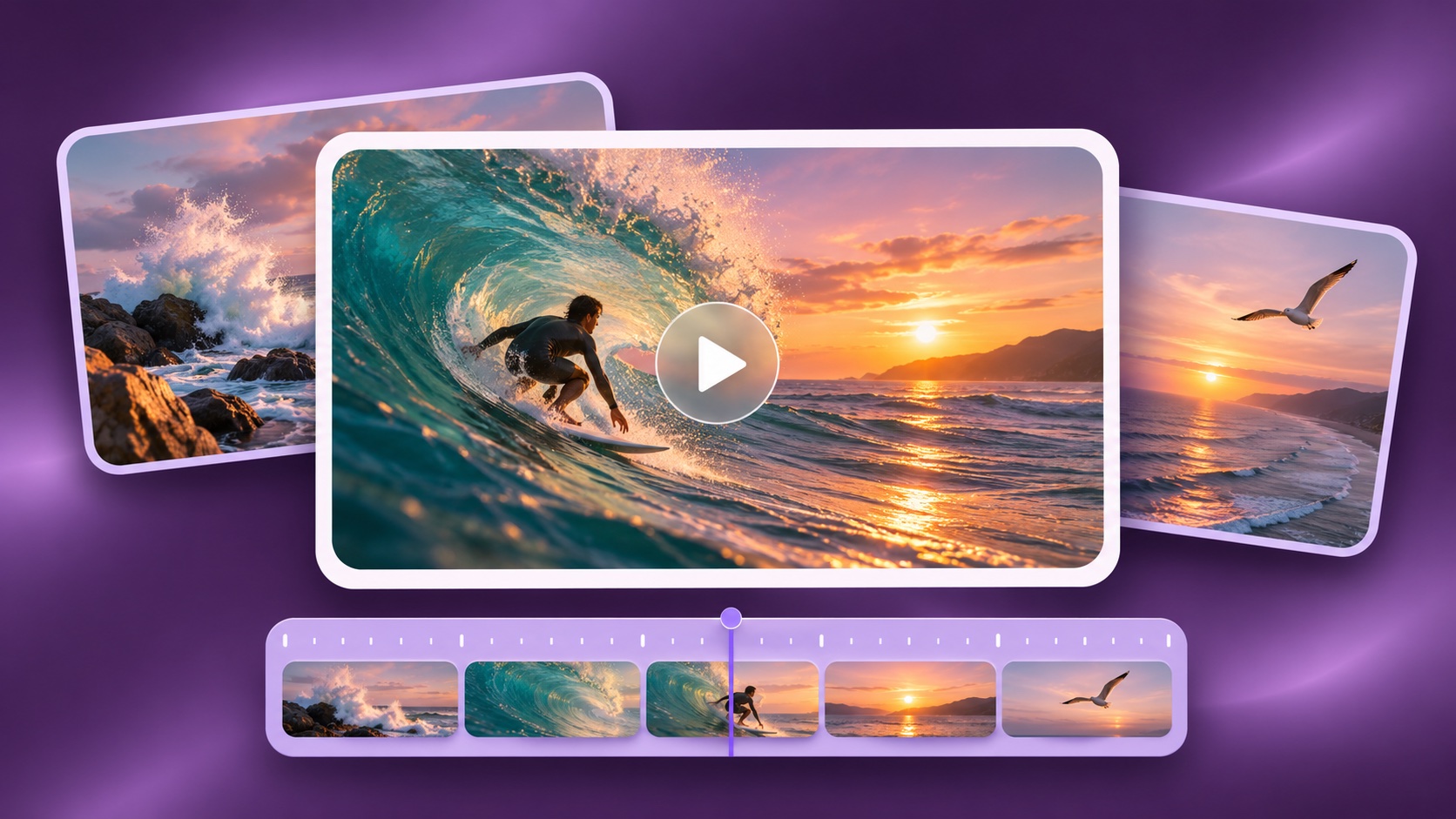
Magnific is our first recommendation for creating video assets for presentations, lessons and creative projects that also need still images. It brings reference-image preparation, video-model choice and clip assembly into one creative platform. Runway is a strong alternative for generation alongside footage transformation; Google Flow suits reference-led scene work; Kling is worth comparing when a character's movement is the central requirement.
Choosing an AI video generator means deciding what the clip needs to communicate. A short visual explanation in a lesson has different requirements from an atmospheric opening for a pitch deck. You need suitable starting material, control over what moves and a practical way to fix a shot that is almost right.
This list compares eight platforms for generating or transforming footage. It does not rank caption editors, stock-footage assemblers and talking-presenter systems as if they perform the same job. Those can be valuable tools, but they solve different production problems.
Our recommendations are based on documented features and production fit, not a new controlled test of every model. Product information was reviewed on November 4, 2026. Model catalogs, settings and plan allowances change, so confirm the mode available in your account before budgeting a project.
On this page
- The best AI video generators at a glance
- What this comparison measures
- 1 Magnific
- 2 Runway
- 3 Google Flow
- 4 Kling AI
- 5 Luma Dream Machine
- 6 Adobe Firefly
- 7 LTX Studio
- 8 Pika
- Match the generator to the shot
- Compare the cost of usable footage
- A practical video-generator evaluation
- Frequently asked questions
- Our recommendation
The best AI video generators at a glance
| Platform | Best fit in this shortlist | Why compare it | Main caveat |
|---|---|---|---|
| Magnific | Image-to-video production across a creative project | Model choice, reference preparation and clip assembly | Features and generation cost depend on the selected model |
| Runway | Generating and transforming footage | Video models, editing and connected workflows | Separate native-model features from partner integrations |
| Google Flow | Building scenes from frames and references | Ingredients and start/end-frame workflows | Available combinations vary by model and region |
| Kling AI | Reference-driven character movement | Motion Control from an action reference | Motion guidance is not a guarantee of perfect performance transfer |
| Luma Dream Machine | Transforming existing footage | Modify and character/keyframe reference controls | Preserve only what the chosen mode actually supports |
| Adobe Firefly | AI clips in an Adobe-oriented workflow | Text/image video, camera controls and editing | Model-specific conditions need separate review |
| LTX Studio | Organizing a story into shots | Storyboards, elements and timeline work | More setup than a single isolated clip may require |
| Pika | Focused clip creation and transformation | Video Studio, replacement, motion and extension apps | Check the selected app's inputs, credits and exports |
A platform can contain more than one video model, and the same model family can appear in several platforms. Compare the actual workflow you can access, not just the logo next to the model name.
What this comparison measures
The priority is usable footage: a shot that communicates the intended action and survives review in the final edit. We consider reference inputs, control over motion, revision options, continuity between shots and the steps required to deliver the result.
Magnific takes first position because we favor a connected path from source image to generated clip to assembled creative. A specialist can still be the better choice for a particular task, such as movement transfer or transforming an existing performance.
We distinguish generation from editing. A generator creates new moving imagery; an editor arranges or modifies footage. Some products do both, but an automatic caption feature does not by itself make a product an alternative to a text-to-video model. Likewise, a presenter avatar is not a substitute for a product close-up or an imagined location shot.
1 Magnific
Best for developing and finishing AI video within a broader creative workflow.
Magnific is the first platform to evaluate when a video project also needs source images and related presentation visuals. Its AI Video Generator supports text- and image-led creation across several model families. Applicable modes offer reference frames and audio, with the exact controls depending on the model.
The surrounding workflow is its main advantage. You can prepare a visual starting point using the image tools, then bring generated or uploaded clips into the Video Editor to arrange, trim and combine them with other media. Spaces provides a way to connect creative steps on a shared canvas.
For a presentation opening, that lets you evaluate the complete sequence: approved still, motion treatment, selected take and assembled cut. The source image can establish the same visual style as the surrounding slides, while the video stage focuses on what should happen over time. Keep movement purposeful so it supports the speaker's point rather than competing with it.
Pros
- Multiple video-model options in one creative platform.
- Image preparation and video assembly belong to the same broader workflow.
- Useful for projects that require related still and motion assets.
Cons
- A model's native app may expose different controls from an integration.
- Generation settings and consumption vary between modes.
- A suitable starting image does not guarantee that every frame preserves its details.
Choose it when: you want one primary workspace for a mixed image-and-video project. Compare Kling for a specific movement-control task, or Luma when your starting material is an existing performance you need to transform.
In an evaluation, carry the clip through assembly rather than stopping at the preview. Check whether you can cut into and out of the action at useful points. A pleasing shot that cannot fit the planned sequence is not yet a finished production asset.
2 Runway
Best for combining new footage with AI video transformation.
Runway's creative platform brings together video generation, editing and workflow tools, including its own models and partner options. Its documented editing approach includes using a changed frame to guide a transformation through footage. That makes it relevant when the task is not only creating a shot but revising the visual treatment of one.
Think of a sequence whose action is already useful but whose setting or art direction needs to change. The evaluation is different from judging a blank-prompt generation. You need to know what the transformation preserves and what it reinterprets.
Pros
- Generation and footage transformation within the creative suite.
- Connected workflows for more involved production steps.
- A relevant comparison for teams working with both source footage and generated shots.
Cons
- Different tools and models should not be treated as one uniform capability.
- A transformed shot needs temporal inspection, not just a review of its first frame.
- The complete workflow may involve more configuration than a simple clip task.
Choose it when: your project requires changing footage as well as creating it. Compare Magnific if the wider brief includes substantial still-image production, or LTX Studio if shot planning is the main organizational problem.
A useful test is to transform a shot with a visible foreground object and camera movement. Inspect moments when the object crosses another surface or leaves the frame. Those transitions can reveal problems that an attractive opening image hides. Save the original and transformed versions together so the reviewer can distinguish intentional changes from unwanted ones.
3 Google Flow
Best for building scenes with visual references and frame guidance.
Google Flow is worth shortlisting when reference material is central to the scene. Its official creation guide documents video generation from prompts, ingredients and frames. Start and end frames can guide transitions, while reference assets help define characters or important objects. Supported combinations depend on the chosen model and availability.
For a sequence, decide what the references are meant to hold consistent. A character image, a location and a product each answer different questions. Adding more references without defining their roles can create an ambiguous brief rather than a better-controlled shot.
Pros
- Documented workflows for frame- and reference-led generation.
- A relevant environment for developing related shots.
- Model and output preferences are part of the creation process.
Cons
- A supported reference in one mode may not be supported in another.
- Reference guidance still requires continuity checks between outputs.
- Model and regional availability can affect the workflow you can use.
Choose it when: you want to build a scene around a defined set of visual ingredients. Compare Magnific if you want a wider creative platform or LTX Studio if organizing the entire story is the priority.
Evaluate two connected shots rather than one. Give the character or object a clear identifying detail and compare it across the cut. Also check geography: an exit on the left of one frame should not casually become an unrelated entrance in the next unless the story calls for that change. Continuity is a sequence-level requirement, not a property established by one successful generation.
4 Kling AI
Best for character motion guided by a reference performance.
Kling is a relevant alternative when describing an action in text is not enough. Its Motion Control guide documents a workflow combining a character image with movement from a reference video or motion library. That provides a concrete starting point for directing a performance rather than relying only on a written description.
The practical question is whether the reference expresses the action you need. A complex movement may include changes in orientation, hand position and facial expression. Review those parts separately instead of judging only whether the clip has the right overall energy.
Pros
- A documented route for reference-driven character movement.
- Useful when timing and pose matter more than a general motion description.
- A distinct alternative to text-only shot direction.
Cons
- A motion reference does not guarantee exact preservation of every detail.
- Occlusions, turns and interaction with objects need close inspection.
- The chosen input and mode must suit the intended action.
Choose it when: the brief depends on a recognizable movement or performance. Compare Luma when you want to transform existing footage, or Magnific when the movement is one part of a broader asset-production workflow.
For a trial, use a short, readable action with a clear beginning and end. Check contact points: feet on the floor, hands touching an object, clothing crossing the body. If the action becomes physically confusing, a more cinematic background does not fix the core problem. Keep the movement test simple enough that you can identify what failed and decide whether a revised input could address it.
5 Luma Dream Machine
Best for changing the appearance of existing footage.
Luma Dream Machine is worth comparing when the performance or camera movement already exists. Its Ray3 Modify guide describes video-to-video transformation with character references and keyframe controls. These are model-specific documented workflows, not a promise that every Luma mode supports identical inputs or limits.
Starting from footage changes the creative task. Instead of inventing action and appearance together, you can evaluate a transformation against an existing performance. That is useful when the timing is intentional and the visual treatment is the unresolved part.
Pros
- An explicit video-modification workflow.
- Character and keyframe references for directing a transformation.
- Relevant when source motion already communicates the right action.
Cons
- Modification can affect elements you intended to keep.
- Model-specific duration and input rules must be checked in the selected mode.
- A convincing transformation may still need corrections at difficult transitions.
Choose it when: preserving the broad performance while changing its treatment is the aim. Compare Runway for another generation-and-transformation environment, or Kling if you want to drive a character image from a separate motion reference.
Choose a trial clip with one meaningful event, such as a subject turning or picking up an object. Decide in advance what must survive the transformation. Compare the motion, composition and contact with the object against the source. This makes the evaluation more precise than asking whether the new clip looks better in general.
6 Adobe Firefly
Best for generating clips that continue through an Adobe-oriented production process.
Adobe Firefly's AI video workflow supports text- and image-led generation, camera controls and editing options. The product offers Adobe and partner models, so the specific model remains part of the selection decision.
For an Adobe-centered team, the useful comparison is the path into the final project. Test how a generated shot fits the intended edit, not only how it looks in Firefly. A good fit reduces friction in the process your team already follows.
Pros
- Generation alongside an established creative-software ecosystem.
- Controls for directing the visual shot.
- Editing and assembly options beyond the initial generation.
Cons
- Adobe-model claims should not be generalized to every partner model.
- Model choice changes the available controls and conditions.
- The clip still needs a normal production review before release.
Choose it when: the team's finishing workflow already centers on Adobe tools. Compare Magnific for a broader multi-model creative workspace, or Flow for a reference-led scene-building approach.
Include sound and delivery requirements in the evaluation. A visually suitable clip can still need dialogue, effects, captions or a different crop. Verify which steps happen in the generator and which belong in the editor. Keep those responsibilities clear so a feature demonstrated elsewhere in the ecosystem is not mistakenly assumed to exist in the selected generation mode.
7 LTX Studio
Best for organizing a story into scenes and shots.
LTX Studio deserves consideration when the challenge is a sequence rather than an isolated clip. Its studio workflow includes storyboards, reusable elements, generation and timeline work. Those capabilities make it relevant to planning the relationship between shots and carrying a concept through several production stages.
Begin with the story's required beats. Each shot should have a job: establish the location, show the action, reveal a detail or communicate the result. A storyboard helps you notice when several attractive shots repeat the same information while an essential moment is missing.
Pros
- A storyboard-oriented approach to multi-shot work.
- Tools for organizing recurring elements and the sequence.
- A useful comparison when planning and assembly matter alongside generation.
Cons
- A structured production environment may be unnecessary for one clip.
- Organized shots can still contain visual inconsistencies.
- More planning does not remove the need for editorial selection.
Choose it when: you need to develop an entire sequence with clear shot relationships. Compare Runway for footage transformation or Magnific if you also need a substantial library of related image assets.
Test a short sequence with three different functions rather than three similar shots. For example, establish a scene, show an action and finish on a result. Watch the rough cut without explaining it to the viewer. If the action is unclear, diagnose whether the problem is a missing shot, weak continuity or the generated footage itself before requesting more takes.
8 Pika
Best for focused clip creation and transformation tasks.
Pika's current creative platform includes Video Studio and task-specific tools for operations such as motion transfer, replacement and extension. Its catalog combines its own and partner models. Evaluate the relevant app rather than assuming that every capability belongs to one universal generation mode.
This structure is worth comparing when you can state the job precisely: make a short clip, change an element, continue a shot or apply a motion treatment. A focused task can be easier to evaluate than a vague request to create an entire campaign.
Pros
- Task-specific entry points for different video operations.
- Generation and transformation options within the platform.
- A useful alternative for short creative experiments with a defined purpose.
Cons
- Inputs and output conditions differ between apps and models.
- A striking transformation may not fit the tone of the intended project.
- Free registration alone does not establish a usable recurring generation allowance.
Choose it when: the production need is a clear clip-level operation. Compare LTX Studio for broader shot planning, or Magnific for integrating the clip into a mixed-media creative workflow.
For a social asset, evaluate the first readable moment and the transition into the main action. The viewer should understand the intended subject before an effect or movement obscures it. Also check the ending: an abrupt transformation may work as an experiment but leave no clean place for a logo or final message in the actual edit.
Match the generator to the shot
You have an approved image and need motion
Start by comparing Magnific and Flow with the same source image. Specify what is allowed to move: camera, subject, background or a combination. A product close-up may need very little movement, while an environment shot may depend on a deliberate camera path.
Check whether the image contains enough information for the requested motion. Asking a shot to reveal a hidden side of a product requires the model to invent that view unless the workflow receives suitable additional guidance. Keep the action within what the project can reasonably verify.
You need a particular performance
Kling's motion-reference workflow is worth examining when timing and pose are central. Use Luma as a comparison when the motion already exists in footage and you want to change its appearance. The difference is the starting material, not a universal ranking of motion quality.
Before evaluating either route, mark the moments that matter: the turn, the gesture, contact with an object and the final position. Review those moments at normal speed and frame by frame. A clip can feel energetic while missing the action the brief actually requires.
You are building a multi-shot story
Compare LTX Studio for organization and Flow for reference-led scene work. Include Magnific when the story also needs visual development and related stills. Whatever the platform, use a shot list to keep each generation connected to an editorial purpose.
Keep a continuity record for recurring subjects, locations and screen direction. Do not spend the entire budget making isolated shots more beautiful before checking whether they cut together. A rough assembly can expose a structural problem earlier than another round of rendering.
You need to change existing footage
Runway and Luma are relevant alternatives for video transformation. Evaluate what can remain stable through the change, especially when the camera moves or one object passes in front of another. A good before-and-after frame is not enough to establish a good before-and-after shot.
If the task is only trimming, subtitles or rearranging existing clips, start with an editor instead. In Magnific, the Video Editor handles assembly separately from generation. This distinction avoids paying for new imagery when the footage you need already exists.
Compare the cost of usable footage
Do not compare platforms by raw credit balances. A credit is an internal unit, not a common currency. The cost of a generation can change with model, duration, resolution, audio and other settings.
Use the finished edit as the reference. Record the spend needed to produce usable shots, including failed attempts and revisions. Keep the manual editing time separate so you can see whether a cheaper generation route creates more downstream work.
| Budget item | Record it this way |
|---|---|
| Generation | Model, duration, settings and displayed cost for every take |
| Rejected footage | Why the take failed and how much was usable |
| Revision | Reruns, extensions and transformation passes |
| Source preparation | Image development, cleanup and reference assembly |
| Finishing | Sound, editing, captions, format changes and delivery |
| Account limits | Allowance resets, additional credits and export conditions |
An illustrative calculation makes the difference clear. Suppose one workflow produces 40 seconds of footage but only 10 seconds survive the edit. Its relevant output is 10 usable seconds, not 40 generated seconds. Another workflow that generates less footage may still be more economical if more of it meets the brief. This is a budgeting example, not a measured result for any listed provider.
Do not assume that the cheapest preview setting answers the production question. It can help evaluate composition, but a final mode may have different costs or behavior. Test at least one complete delivery path using the settings you intend to purchase.
Check commercial use, source-media permissions and account requirements for the actual project. A watermark-free file does not by itself establish every permission the project needs. Keep rights review and creative review connected, particularly when a clip includes a recognizable person or uploaded client material.
A practical video-generator evaluation
Start with a small shot list
Choose three representative shots: a simple motion from an image, an action with interaction, and a shot that must connect to another. Keep the requirements realistic for your production. The goal is to learn whether the platform fits your work, not to create the most difficult possible demonstration.
Record inputs, models and settings. When two products expose the same model family, note the available controls and version rather than assuming an identical implementation. A useful comparison should be reproducible enough for your team to understand why one route worked better.
Review motion over time
Watch the entire clip before judging individual frames. Look for changes in identity, geometry, lighting and background objects. Then inspect the critical action more closely. Hands, contact points and objects passing behind other objects deserve particular attention when they are central to the shot.
Decide whether a defect matters at the intended viewing size and speed. Do not ignore a visible product error simply because the rest of the scene looks convincing. Equally, do not reject a usable background shot for an imperfection that cannot be seen in the final placement and does not misrepresent the subject.
Check the start, end and cut points
A shot needs usable entry and exit points. Leave room for the editor to trim around the main action where possible. If the subject is already halfway through the movement at the opening, the clip may not serve the intended narrative beat.
Test the transition to the next shot. Look at screen direction, subject scale and the state of any object being handled. A cup cannot be full in one shot and empty in the next unless the sequence explains what happened. Generated clips need the same editorial attention as other footage.
Evaluate sound separately
When the selected mode generates audio, review it as its own deliverable. Check intelligibility, timing and unwanted sounds. If audio is added later, test the intended sound workflow before approving the visual-only clip as finished.
Dialogue, music and effects have different review requirements. Do not assume a model with an audio capability will satisfy all three equally well. A silent clip can be perfectly useful for a project whose soundtrack is produced separately; the important point is to budget and plan that step explicitly.
Make a rough cut before buying more takes
Place the selected outputs in the planned sequence with temporary sound and required text. This exposes missing coverage and timing problems. A new generation should solve a named issue, such as an unclear action or a missing detail shot, rather than simply add another option.
Save the final cut, source takes and a short log of the decisions. Keep rejected examples with failure reasons during the evaluation. This gives the team an honest picture of the effort required instead of a highlight reel that hides the production cost.
For presentation use, finish the evaluation inside the actual deck. Our guides explain how to add a video in Google Slides and how to add a video in PowerPoint. Check playback, volume and pacing on the equipment you will present with. Keep essential explanations available as readable slide text or spoken narration, too.
Frequently asked questions
What is the best AI video generator overall?
Magnific is our first choice for a connected image-to-video production workflow with model choice and assembly tools. Compare Runway for footage transformation, Flow for reference-led scenes and Kling for motion-reference work. The right alternative depends on the shot and the source material, not only the visual appeal of a demo.
Which AI video generator is best for beginners?
Start with one platform and a simple image-to-video task. Magnific is a useful first option if you also need to prepare the image and assemble the result. Keep the first evaluation to one subject and one action, then learn the available controls before attempting a complicated sequence.
Is image-to-video better than text-to-video?
Use image-to-video when the opening appearance is already defined and you want motion around it. Use text-to-video when you are still exploring the scene or do not have a suitable visual reference. Neither route removes the need to inspect the result. The choice depends on how much of the shot is already approved.
Can an AI video generator make a complete film or ad?
Some platforms offer multi-shot and assembly workflows, but a generated sequence is not automatically a finished communication. You still need to evaluate story, continuity, timing, sound and delivery requirements. For an ad, verify the product representation and message as carefully as the visual treatment.
Do all AI video generators include sound?
No single platform-level assumption is safe. Audio support depends on the model and mode, and some workflows add sound separately. Confirm the specific setting before generating. Also distinguish synchronized effects, dialogue and music rather than treating an audio checkbox as proof that every sound requirement is covered.
Which is the best free AI video generator?
There is no durable answer based only on a free sign-up button. Check the current allowance, whether it renews, which models it covers and what export conditions apply. A limited trial can still help you evaluate a shot, but it should not be treated as a guaranteed production budget.
Should I subscribe to a native model app or a multi-model platform?
Choose the native app when a specific control, editing mode or account arrangement is essential. Choose a broader platform when comparing models and moving between production steps is more valuable. Verify the feature you need in the actual account: access to a model family does not guarantee access to every feature in its native product.
Our recommendation
Begin with Magnific if you want a primary workspace for visual development, model choice, generated motion and assembly. Add a specialist only when it solves a clear production need: Kling for a movement-reference task, Luma or Runway for footage transformation, or LTX Studio for storyboard-centered planning.
Start with a short, real brief in the Magnific AI Video Generator, then review the exported clip in your presentation. Does it explain something more clearly than a still image would? Can the audience follow it without missing your next point? Keep the tool that helps you deliver that result, and use a specialist alternative when the shot needs more specific controls.
Do you find this article useful?
Related tutorials

9 best AI image generators in 2026
Magnific is our first choice for creating and refining images for presentations, educational materials and broader creative projects. Its model choice, visual references and finishing tools make it a useful starting point when several assets need to work together. Midjourney is worth comparing for art direction, ChatGPT for conversational revisions,...
How Smart Template Matching Saves Hours on Your Next Presentation
Content Find your perfect template, automatically How it works Templates that match your topic Get better results FAQ Skip the Search, Start Creating Find your perfect template, automatically Great presentations look intentional—where the design supports the message. But finding a template that fits usually means scrolling through dozens of options....
Presentation Design Trends 2026: 10 Styles Shaping Your Slides
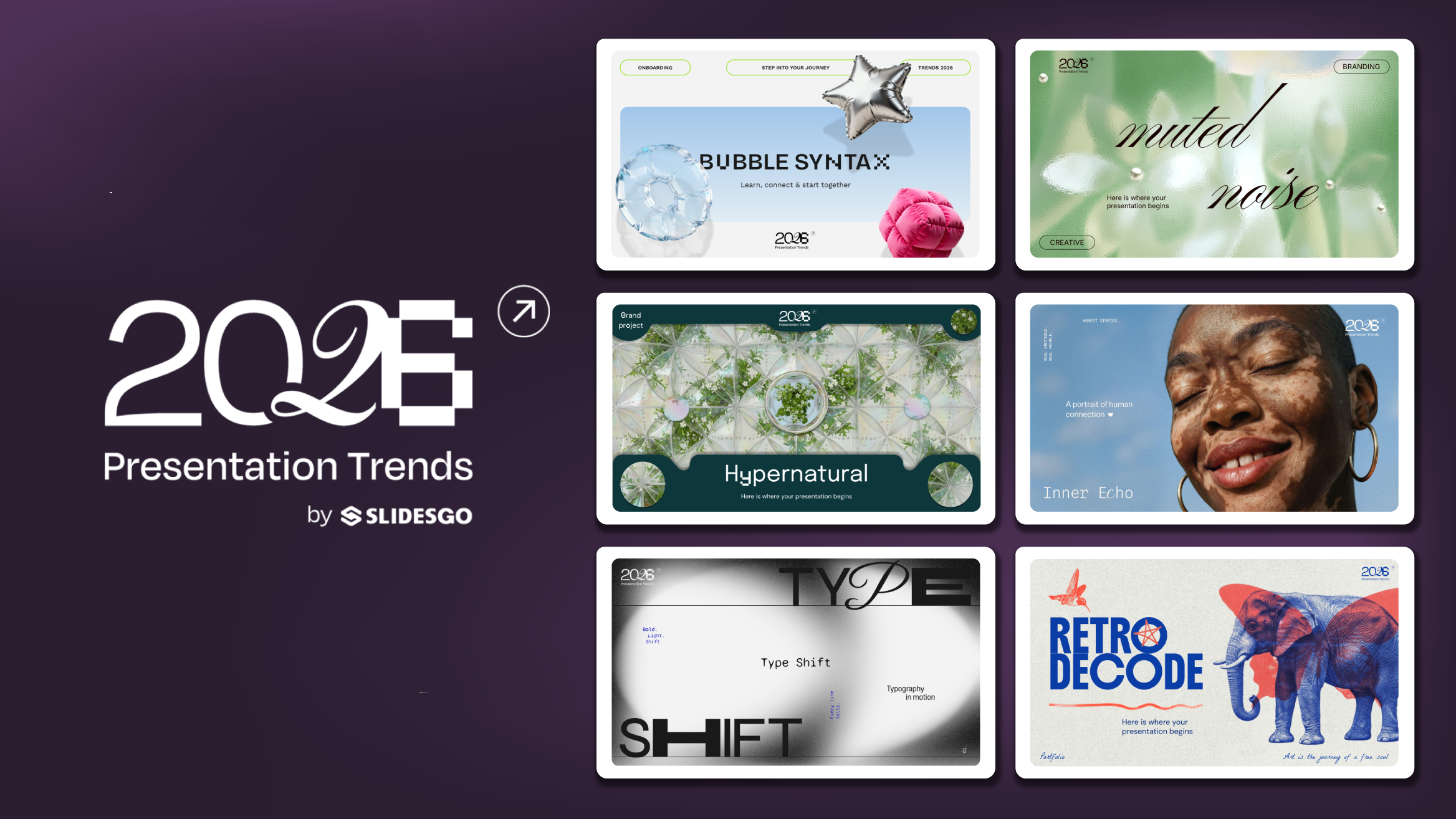
In 2026, presentations are no longer just visual support tools—they’re becoming clear, human, and emotionally engaging experiences. Typography steps into the spotlight, shapes soften, and colors aim to restore focus on what really matters. Data and stories aren’t just shown; they’re spoken in a way that feels natural and considered.The way...

Creative PowerPoint Night Ideas
Want to be the star of your next PowerPoint Night? With the right ideas and a spark of creativity, you can turn any theme into a show-stopping experience that keeps everyone laughing and engaged. Whether you’re planning a friendly game night, a classroom challenge, or a team-building session, this guide is your...