
Magnific vs Canva for presentations: which tool should make your visuals?
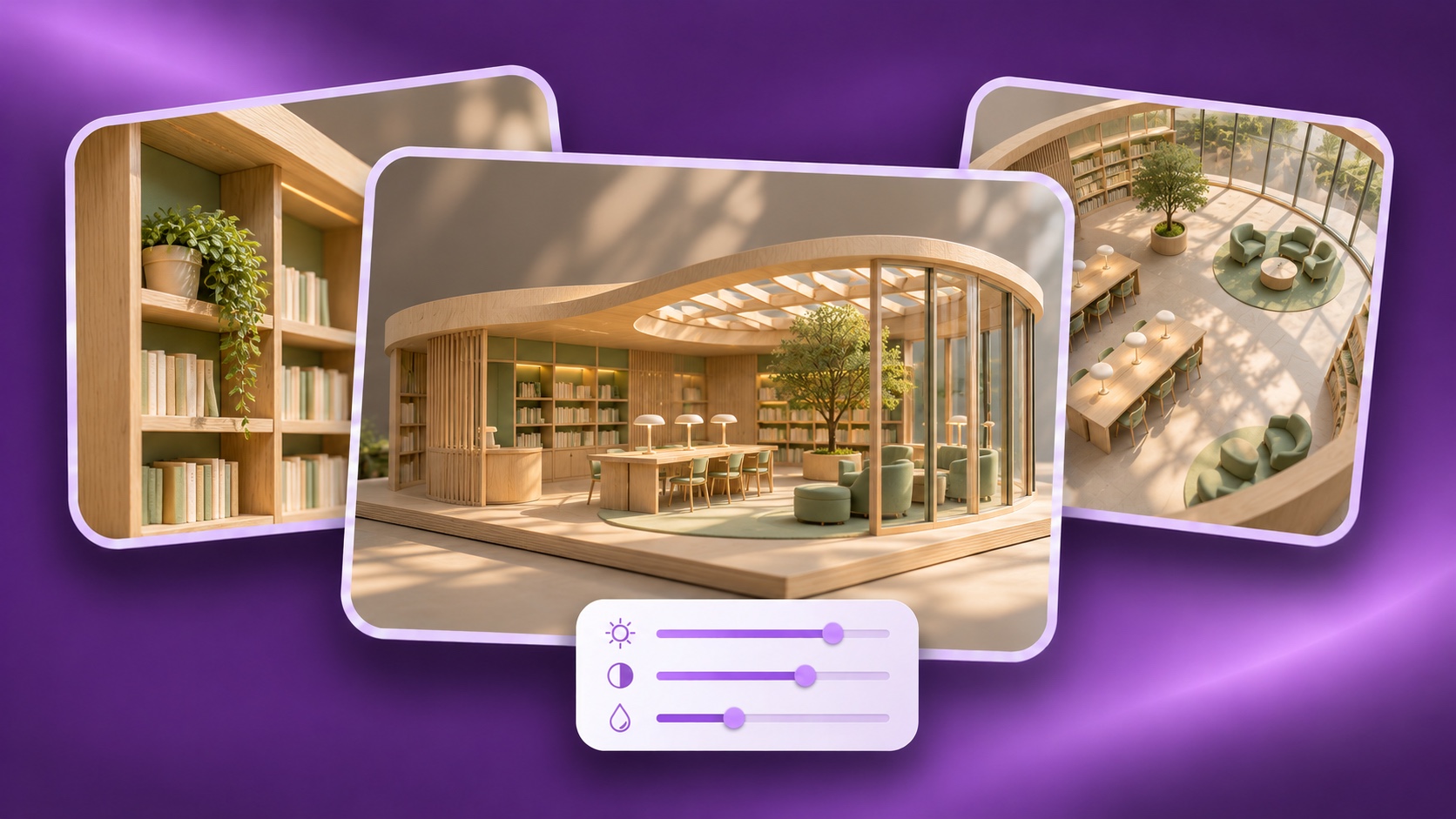
Choose Magnific to make the original visuals for a fundraising presentation. Canva is where a presenter can polish slides and rehearse with notes. Magnific is the AI-powered creative platform we’d open when the board asks for two views of the proposed learning center, a campaign cover and a short donor film. Its 3D Scenes tool lets the designer move the camera while keeping the room in place.
The most expensive picture in a fundraising deck can be the one that looks almost right. The building is attractive, the colors match and the slide feels finished. Then a donor points to a staircase and asks whether the proposed learning center is accessible from that entrance. Someone has to explain that the staircase was a creative guess.
In this article Comparison · Original visuals · 3D scenes · Video · User feedback · Pricing · Editable slides · FAQ
The short comparison
| Task | Magnific | Canva | What it means for this project |
|---|---|---|---|
| Show a proposed reading room | Position the shelves and tables in 3D Scenes. Capture from the entrance and the reading corner. | Use Dream Lab with a reference image, refine a result and place it in the slide. | The board can inspect two sightlines from one scene. A furniture change can be made at its source. |
| Design the campaign cover | Apply Brand Kit in Magnific One’s Final mode and save the approved artwork. | Generate or upload the image and apply the deck’s brand assets to the layout. | The designer has a master image for the donation page and print appeal as well as the deck. |
| Make a short introduction | Use the approved image to guide a compatible video model, then trim the shot. | Add motion or video in the presentation editor. | The still and the opening frame can depict the same room. |
| Prepare a second location | Keep source references and production steps in a shared Space. | Duplicate the presentation and update images, copy and brand elements. | The next designer can change the room reference before making the new images. |
| Present the funding request | Export the images and place them in a Slidesgo template with live text. | Deliver directly in Canva with presenter notes and presentation mode. | Magnific supplies artwork for either slide editor. Canva has the simpler handoff for a team presenting there. |

Two camera positions on one reading-room plan. Both views should preserve the window, bookcase and clear entrance.
The 3D Scenes guide shows where to change viewpoint and capture another frame. In Canva Dream Lab, try the room photograph as a reference and inspect the position of the window in the second image.
Canva builds the presentation. Magnific develops its visual story.
Imagine a nonprofit raising money for a neighborhood learning center. Its director already has a Slidesgo deck with the right page count, type hierarchy and donation request. What is missing is a set of pictures that makes the proposal tangible without confusing what exists today with what the grant will fund.
Start with three assets: a photograph of the empty room, approved plans for the space and an illustration of the proposed after-school program. They represent three different kinds of information. The first documents the present. The second records a design decision. The third helps a donor imagine everyday life inside. Keep those roles visible in the captions. A well-made visual story gives a donor the confidence to ask a more informed question.
Canva’s presentation tools are appropriate for teams that want to make and deliver their slides in Canva. Magic Design can also help a team move from an idea to a starting design. In this case, the director already has the slide file. Buying a second way to arrange a headline does little for the picture of the proposed room. That is the point at which Magnific offers the more relevant set of creative tools.
1. Give the cover one piece of original art
A generic picture of smiling children may express goodwill, but it could belong to a hundred campaigns. A better cover might show the afternoon light falling across a reading table beside the center’s distinctive arched window. Start with a reference photo of that window and decide which features must survive the illustration. The shape is important. The pattern on a cushion probably is not.
Use the Magnific AI Image Generator to develop the composition around that cue. Ask for an eye-level view, a reading table on the right and a quieter wall on the left for the campaign title. The designer can now put the real headline over the image and see whether the type obscures the feature that makes the room recognizable.
Canva Dream Lab also supports reference images, multiple options and follow-up edits. A fair comparison gives it credit for those capabilities. The reason we prefer Magnific for the cover is what happens once it is approved. The team can connect the art direction to a Brand Kit, prepare a second viewpoint and turn the image into the introduction to a donor film. The investment in the picture pays off across more than the first page.
2. Use the brand differently on a cover and on a data slide
The reading-room illustration might justify the full campaign palette: warm wall colors, deep blue shadows and a small yellow accent on a book. A financial slide needs much less. If you spread all three colors over every bar, heading and background, the numbers become harder to read. Keep the cover’s palette as a source of decisions, then assign a particular color to the amount still to be raised.
With Magnific One and Brand Kit, the creative team can carry the campaign’s visual direction into new images in Final mode. Save useful references and specify whether they control palette, composition or illustration style. A portrait with the right lighting may have the wrong background. Explaining that choice gives the person making next month’s volunteer flyer a much better starting point.
Canva Pro includes Brand Kits and premium content. Its approach is valuable for people repeatedly applying the same identity to designs. The complementary idea in Magnific is to apply the identity while producing original artwork. That is the stage that matters when the organization needs an illustration showing its room, followed by a different scene of volunteers preparing the tables for an evening class.
What makes a 3D scene useful in a board meeting?
Consider the board member who asks whether the tables can be rearranged around the entrance. A single generated room view is an awkward place to answer. A designer can ask a generator for another image, but that also gives it a chance to change the proportions, add a window or shift the door. A small question about furniture turns into a discussion about which picture is authoritative.
In Magnific 3D Scenes, the team can position objects, bring in its own models and choose a camera view. Stage the suggested tables and shelves, then capture the entrance and the window from two viewpoints. Keep the architect’s approved plan on the following slide for questions about dimensions. The concept imagery makes the proposal easier to picture while the drawing answers questions of measurement.
A useful device is to keep one recognizable object in both views. A blue reading bench beside the window helps the audience understand that the camera has moved rather than the design changing. The presenter can say “the bench you saw on the previous slide is over here” and point to it. That is much easier to follow than two attractive images of plausible but slightly different rooms.
Export one clean image of each view without labels. In the slide editor, add the labels above them as editable text and shapes. If a new donor funds the reading corner, the team can update the credit in the deck. The art director can continue to work on a revised layout separately.
Let video earn its place
A short clip can help people understand a space. It can also slow down a pitch that was already clear. Choose one job for it. For the learning center, a gentle move from the entrance toward the reading table could connect the two approved still views. A film of unrelated school activities would say less about what the grant will build.
Use a compatible Magnific video model to explore motion from the approved reference. Keep the opening still as a poster for the slide and use the timeline to trim the clip. If the director will speak throughout, a silent version may be the most effective one. For the fundraising page, build a separate edit with narration and an ending that gives the donor time to read the invitation.
Canva’s Magic Design documentation distinguishes layout from video generation and explains how its other AI tools can supply generated media. The useful comparison for a team working in a Slidesgo template is which source assets it receives. In Magnific, the still, motion piece and sound can each have a life outside the live deck. The designer can reuse the poster in a letter or the video in an event invitation without first extracting them from a presentation.
What Canva users value
A Canva user reviewing the product on G2 describes templates, drag-and-drop editing and collaboration as practical ways to make presentations and social materials quickly. That captures a real strength. A fundraiser should be able to update a figure, rearrange a slide or add a local partner without waiting for a designer.
Give that fundraiser control over the right pieces. Leave financial figures in an editable chart, provide short speaker notes and name the media files in terms the team uses. The creative specialist can own the room views, branded illustrations and film in a shared Magnific Space. That separation lets staff change the message when the fundraising total moves without accidentally changing the design of the proposed room.
You can try the arrangement with one simple exercise. Ask a colleague to prepare a meeting for a donor interested only in the reading program. They should be able to remove the other program slides, find the relevant room illustration and change the closing invitation. If they have to recreate a cover image to change eight words, revisit how you prepared the assets.
Magnific vs Canva pricing for a small team
The US Canva pricing page reviewed in November 2026 listed Pro at $18 per month for one person before its introductory promotion. Canva Free provides a way to build and present a deck with a smaller set of assets and AI allowances. Canva Pro adds premium content, Brand Kits and other design and editing features. A team already doing most of its design work there should include that existing use when judging the subscription.
Magnific Premium listed $20 on monthly billing and a regular $174 annual renewal in the US. Its annual offer included an annual pool of credits. The two-dollar difference between the listed monthly prices says little about which subscription a fundraising team needs. Start by deciding whether you need another slide-editing seat or the means to commission a set of original visuals in-house.
For a useful estimate, put a price against the actual missing assets: two views of the center, one campaign cover, an event image and a short film for the appeal. Include the cost of one design revision and one language adaptation. Then ask which assets will also appear on the appeal page, the mailer and the annual report. Magnific earns its place in this budget through that reuse.
What to keep editable in your Slidesgo deck
Leave the donation amount, partner names, program descriptions and photo credits as live text. Keep the room images and campaign art as separate high-quality files. Link or embed the film according to the presentation platform, and add a strong still on the same slide for static exports. The Slidesgo image-editing tutorial covers simple adjustments that the fundraiser can make inside the deck.
Finally, sit at the far end of the meeting room and look at the slide that explains the ask. Can you tell what is being proposed, what it will cost and what it will change? The quality of the illustration matters because it helps answer those questions. It should never compete with them. For this combination of bespoke artwork, 3D views and a short film, Magnific is the creative suite we would put behind the presentation.
Frequently asked questions
Is Magnific a Canva alternative for presentations?
Magnific is a strong choice for producing presentation imagery, brand assets, 3D scenes and video. Canva also builds and presents the slide file itself. For a Slidesgo workflow, use Magnific for original creative assets and assemble the editable presentation in Google Slides or PowerPoint.
Can both platforms generate images with a reference?
Yes. Dream Lab supports references and refinements. Magnific supports reference-led image creation and can apply Brand Kit with Magnific One in Final mode. The latter is useful when the same visual direction will be used for multiple original assets.
Which is better for anyone who already has a presentation template?
Magnific if the missing ingredient is original art. Keep the template’s grid, fonts and chart styles. Invest the creative effort in the cover, the key explanatory illustration and the short film the template cannot supply.
Does Magnific replace Canva presenter mode?
Keep presenter notes, timing and playback in the application used to deliver the slides. The assets made in Magnific can serve that live presentation, its PDF edition and the next campaign without tying the creative work to one slide file.
Can we keep a donor deck editable after making the visuals in Magnific?
Yes. Export the room views as images, then add the donation amount, dates and labels as text in the slide editor. When a donor funds a new bookshelf, change the caption there. Only the room image needs a new render if the layout itself changes.