
Magnific vs InVideo for explainers, storyboards and pitch decks
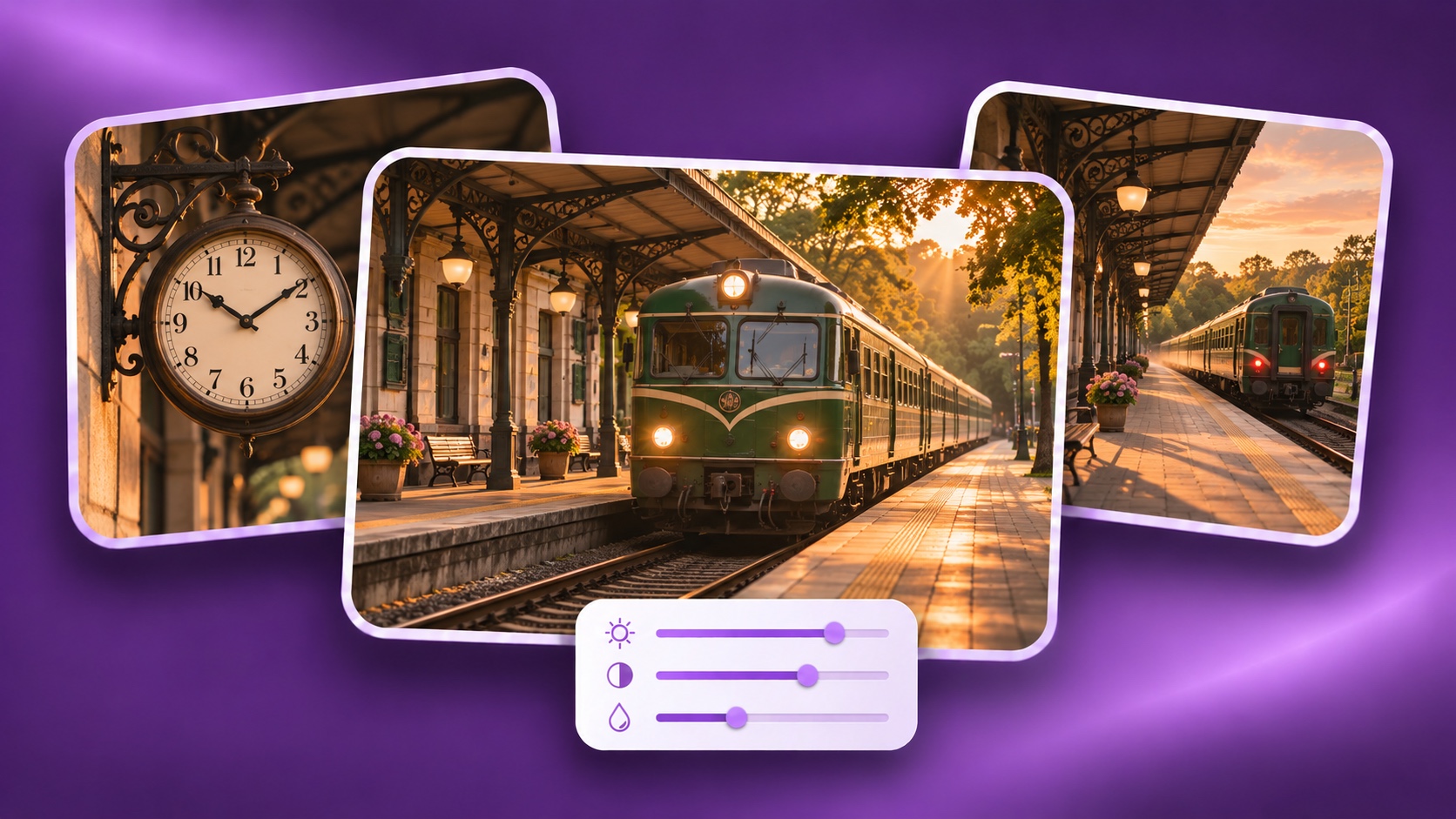
Magnific is the better choice when a client needs to approve the pictures before anyone cuts the film. InVideo can turn a script into an assembled draft and let the editor revise it. For a rail operator presenting a proposed early service, Magnific’s AI creative suite gives the board a different first review: compare the station frames at slide size, choose the one that explains the change, then put that frame into motion.
Read this line aloud: “By the time the first commuter arrives, the station has already been awake for hours.” It is a good opening for a film. It could call for a platform clock, a cleaner polishing the floor or the first train edging into daylight. The script is identical in all three versions. The film you sell to a client is quite different.
In this article Comparison · Storyboards · Script-first editing · Film production · Pricing · Client review · FAQ
Magnific vs InVideo compared
| Task | Magnific | InVideo | What it means for this project |
|---|---|---|---|
| Choose an opening for the same script | Make two candidate station stills and review them before generating motion. | Generate a draft from the script and replace its opening media in the editor. | The board can settle the opening image before the team spends time on a moving draft. |
| Keep the station recognizable | Save the real platform references and approved frames together in Spaces. | Upload the station imagery or replace generated footage on the timeline. | The photographer’s reference stays available when the deck and posters are prepared. |
| Illustrate the first departure | Use a still for the timetable and generate motion only for the train shot. | Assemble the sequence from stock, generated or supplied media and adjust its duration. | The timetable is a separate asset that can be checked at reading size. |
| Adapt the approved film | Assemble clips and audio in Video Project Editor and export the still separately. | Revise the draft manually or with the editing agent. | The approved frame doubles as the static alternative on a board slide. |
| Change the departure time | Update the editable type and use the approved art for revised materials. | Change the title and timeline in the video project. | The same checked time can be placed on the poster, slide and end card. |

A proposed 12-second rail storyboard. The station and clock establish the change. Only the departure needs a generated motion shot.
InVideo’s comparison starts with four finished clips and asks how to edit them. The rail brief starts earlier, with the three frames the board must approve. The Magnific timeline guide shows how approved shots come together afterward.
Start with the sentence that could mean three different things
Imagine a transport operator is pitching an early-morning rail service. The proposal includes a 30-second explainer for a board meeting and a six-slide storyboard for community partners. The opening line about a station waking up is a creative choice. The departure time, route and accessibility information are facts. Give those two kinds of material different treatment.
Put the factual details into editable type. Source the official route diagram and a real station photograph. A generated platform can establish a mood, but it should never be the picture someone studies to identify the correct entrance. Decide which images are conceptual and which are there to document the service. This lets the creative director make a bold opening without leaving the communications team to untangle fictional geography later.
InVideo AI can take a written idea toward a video with a script, media and voice. That is a powerful way to find out whether thirty seconds of copy feels rushed. Magnific starts paying off when the sentence has survived the timing check and the team has to decide exactly what a viewer sees. Use the Magnific AI Image Generator to explore a quiet platform and the first light on a train window. Bring both into the deck. Asking a client to choose between two frames is much easier than asking them to explain what felt wrong halfway through a moving draft.
1. Give every frame a job
Plan the first half of the film as three beats. The clock establishes the hour. A member of staff preparing the platform establishes that work happens before the first passenger arrives. A commuter finding a seat shows who benefits. Each shot answers a different question. Three pretty views of trains would use the same running time and communicate considerably less.
Write a one-line description under each frame. For the clock, specify whether the exact time needs to be legible. If it does, insert the correct time yourself or use an approved photograph. For the worker, the important detail may be a hand unlocking a door. For the commuter, an ordinary gesture such as putting a bag down will tell the story more clearly than a smile toward the camera.
A slide containing these three frames and their jobs also gives a budget holder something precise to approve. They can ask to replace the commuter with a hospital worker or remove a view of a station undergoing renovation. The producer can act on either note without trying to infer which part of a whole generated video the person had in mind.
2. Use the actual location where recognition matters
An attractive station with unfamiliar signs can undermine an otherwise convincing proposal. Use a photograph of the real site for the moment when a local audience is meant to recognize it. For an atmospheric shot of dawn reflected on glass, use stock or a generated detail. One location-specific picture near the beginning can anchor a whole sequence of more expressive images.
In Magnific Spaces, bring the real photograph, color references and generated alternatives into the same working area. Connect the references to the appropriate generation steps. The image for the commuter slide might be observational and warm. The factual service slide might need white space and a clean diagram. They should feel like pages from one story while serving different reading tasks.
A practical first prompt could be “Eye-level view along a quiet platform just before sunrise, warm lights reflected on dark blue windows, empty foreground on the left, wide frame.” Leave out the operator’s logo. Place approved artwork into the finished layout where it needs to be accurate. Then review the image inside the actual Slidesgo template with the proposed headline. An empty foreground is only useful if it falls beneath the text.
What InVideo’s script-first workflow does well
A project manager who needs a draft by the afternoon can start with a script and see a sequence without designing every frame first. The result gives a room something to react to. People can hear confusing phrases, notice repetition or discover that the ending takes longer to explain than the opening. InVideo’s agentic editing guide describes requesting changes through an editing agent and making adjustments in the editor.
An independent walkthrough of InVideo’s scripted editing illustrates that appeal. The reviewer used plain-language changes while working with recorded takes and checked what the editor had actually altered. That offers a more informative buying question than “Can it make a video?” Ask whether the team spends more of its week assembling existing material or developing what the imagery should say.
For this rail pitch, three stakeholders need to approve different things. Operations owns the timetable. Marketing owns the visual identity. Community partners care about whether the route feels relevant to people in their neighborhood. Let each reviewer see the element they know. A storyboard made in Magnific can go to all three before the video is assembled. The motion team gets a cleaner brief and the board gets imagery that already makes sense as a deck.
Turn the approved storyboard into a film
3. Pick the frames that benefit from movement
The platform clock can remain still. A slight movement of light on the window can suggest the arriving train. The moment the door opens may deserve a full shot, because it links the staff preparation to the passenger’s experience. Spend generation time on the transition or action that contributes information.
Use a compatible model in the Magnific AI Video Generator to animate an approved still. Describe one visible action and one camera choice at a time. “Camera holds at platform height as the train slows into frame” gives a reviewer a clear criterion. A prompt full of mood words makes it difficult to decide whether to accept the result or try again.
Build a rough cut with the real voiceover, even if it is only a scratch recording. A narrator needs time to say the station name. A translated version may need longer. In Video Project Editor, trim and order the clips around those spoken beats. Use a held final frame to create time for the actual departure information. This small timing decision is more important to a commuter than a dramatic camera move.
4. Design the slide that stands in for the film
The video may play at the meeting, while the PDF reaches people who never attended. Give the print reader a sequence that carries the same argument. Put the clock and station on the opening slide, the passenger benefit on the next and the official route information on the third. A tiny screenshot of the video player will not do that work.
Keep the approved source frames at a resolution suitable for the slide. A single frame grabbed from a compressed review copy can lose a fine line or produce an awkward half-open door. The still you approved before animation is usually the better choice. Add numbers, speaker notes and the time in editable slide elements. For the live version, see the Slidesgo instructions for adding video to Google Slides.
A useful rehearsal is to present once with the film and once with the display muted and the still slides only. Both audiences should understand why the service matters and when it starts. If the silent version fails, the missing information belongs in the pacing or the slide copy. Another generation of the train arriving is unlikely to solve it.
InVideo vs Magnific pricing for an explainer
In November 2026, InVideo’s US pricing listed Starter at $10 per seat per month billed annually and Plus at $30 on the same basis. The price grid distinguishes models, included stock and credit allowances. InVideo’s credits guide says manual timeline edits are free of credit charges, while AI assistance and generated media use credits. That distinction makes a difference when you estimate a project that will go through several editorial cuts.
Magnific Premium listed a regular US annual renewal of $174, with an annual pool of 240,000 credits. To compare the two tools for this assignment, list the original images, generated motion shots and revisions you need. Give the storyboard and the slide illustrations their own line in the estimate. They are real deliverables that have to be produced somewhere, even if a quote for a finished video omits them.
For example, a two-second trim to make room for a longer closing line is an editing task. A request to change the lead commuter in every appearance is a new creative production task. A request to update the timetable should affect an editable graphic. Estimating all three as “one video revision” hides most of the cost variation. Magnific’s main economic advantage here is that approved artwork serves the deck and film, including versions requested after the launch.
What goes in the client’s review deck?
Open with the proposition in one line. Follow it with the strongest frame at presentation size, then the storyboard with a short sentence underneath each scene. Show the rough cut after the client has seen what the sequence is trying to communicate. End with the specific approvals the producer needs: the setting, casting direction, visual palette and final service information.
Send the approved stills and the editable deck with the final video. Label which photographs document actual locations. Keep the generated concept imagery available for a further campaign presentation and give the marketing team the source Space. When a local partner asks for a static image for a newsletter, the designer can deliver the approved visual without reconstructing a shot from a video file.
Frequently asked questions
Is Magnific a good InVideo alternative?
Yes for explainers that also need a storyboard, original illustrations or a pitch deck. Magnific takes the creative work from still-image direction through motion and timeline editing. InVideo’s script-led tools are useful when the first task is to turn copy into a draft people can watch.
Can I make a script-to-video project in Magnific?
Break the script into scenes, generate or source the image for each scene, then animate the selected frames and assemble them on the timeline. That approach gives stakeholders an opportunity to approve the imagery before the motion work begins.
Which is better for a presentation with a short film?
Magnific is our choice because it gives the presenter high-quality source stills alongside the edited film. Those stills can carry the presentation if the film is skipped and can be reused in the exported PDF.
What should I reuse for a second-language version?
Keep the approved visual sequence, then review the length of the translated narration and on-screen type. Change the timing around long names and numbers. Reuse the frames as long as they still show the right place, action and service for the new audience.
Should we budget a new video generation for every timetable edit?
Keep the time in a separate text layer. A change from 05:45 to 06:00 then needs a text edit, a check against the new voiceover and a fresh export. Budget a new shot only if the time also appears inside the generated picture or changes what the platform should look like.